A slow internet connection can make everyday online activities frustrating. Whether you are watching videos, attending online meetings, playing games, or browsing websites, a weak WiFi connection can interrupt your work.
Many people think they need an expensive internet package to solve this problem. However, slow WiFi is not always caused by your internet plan. Router placement, network congestion, outdated equipment, and wireless interference can also affect internet performance.
Learning how to improve WiFi speed at home can help you enjoy a faster and more reliable connection without spending unnecessary money.
In this guide, we will explore ten practical ways to improve your home WiFi speed and reduce common connection problems.
1. Place Your Router in the Right Location
Router placement plays an important role in WiFi performance. If your router is hidden inside a cupboard or placed in a corner, its signal may not reach every room properly.
Place your router in a central and elevated location. Keep it away from thick walls, metal objects, and large electronic appliances.
An open area allows wireless signals to travel more effectively throughout your home.
2. Restart Your Router Regularly
Sometimes, routers experience temporary software issues or connection problems. Restarting your router can help resolve minor network issues.
Turn off your router, wait around 30 seconds, and turn it back on. Allow it a few minutes to reconnect to the internet.
You do not need to restart it constantly. However, restarting it when you notice connection problems can be a useful troubleshooting step.
3. Use the Right WiFi Frequency
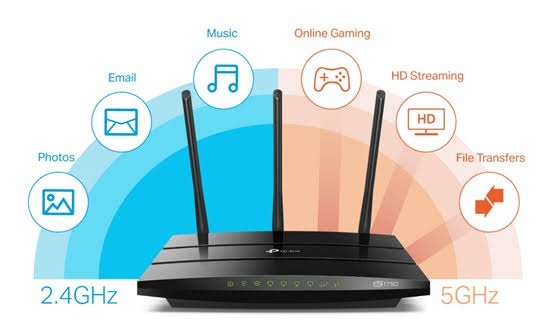
Most modern routers support 2.4 GHz and 5 GHz WiFi bands.
The 2.4 GHz band generally provides better coverage and can travel farther through walls. However, it may experience more interference.
The 5 GHz band can provide faster speeds over shorter distances, especially when fewer nearby networks use the same channels.
If your device is close to the router, try connecting to 5 GHz. For distant rooms, 2.4 GHz may provide a more stable connection.
Some newer routers also support the 6 GHz band through WiFi 6E or WiFi 7.
4. Update Your Router Firmware
Router manufacturers release firmware updates to improve performance, fix bugs, and address security problems.
Using outdated firmware may cause connection issues or prevent your router from benefiting from newer improvements.
Open your router’s administration page or mobile application and check for available updates.
Follow the manufacturer’s instructions when installing updates. Avoid switching off the router during the process.
Regular firmware updates can help keep your network stable and secure.
5. Reduce the Number of Connected Devices
Too many connected devices can affect your available internet bandwidth.
Smart TVs, smartphones, laptops, gaming consoles, and security cameras may all use your WiFi connection. Some devices also download updates or stream videos in the background.
Check your router’s connected-device list. Disconnect devices that you no longer use or recognize.
You can also pause large downloads when other family members need a stable connection.
Managing connected devices can help distribute available bandwidth more effectively.
6. Change Your WiFi Channel
Wireless interference is another common reason for slow WiFi performance.
In crowded areas, nearby routers may use the same wireless channels. This can cause network congestion, especially on the 2.4 GHz band.
Open your router settings and check the available channel options. You can use a WiFi analyzer application to identify less crowded channels.
For 2.4 GHz networks, channels 1, 6, and 11 are commonly recommended because they do not overlap.
If your router supports automatic channel selection, you can also try that option.
7. Upgrade Your Router
An old router may not support modern WiFi standards or handle multiple connected devices efficiently.
If your router frequently disconnects or struggles to provide good coverage, consider upgrading it.
Look for a router that supports WiFi 6 or a newer standard. Also, check its coverage, speed capabilities, and number of supported devices.
You do not always need the most expensive model. Choose equipment that matches your internet package and household requirements.
8. Use a WiFi Extender or Mesh System
Large homes may have areas where the WiFi signal becomes weak.
A WiFi extender can help expand wireless coverage by repeating the existing signal. However, its performance depends on its placement and wireless capabilities.
A mesh WiFi system uses multiple connected units to provide more consistent coverage throughout larger homes.
Place additional units where they can still receive a good signal from the main router.
These solutions are especially useful when one router cannot cover every room.
9. Secure Your WiFi Network
An unsecured WiFi network may allow unauthorized people to connect to your internet.
Extra users can consume bandwidth and reduce the speed available to your household.
Use a strong WiFi password and enable WPA2-AES or WPA3 security when supported by your router.
You should also change the default router administrator password.
Check your connected devices regularly and remove unfamiliar connections.
A secure network helps protect your internet connection and personal information.
10. Check Your Internet Speed and Ethernet Connection
Sometimes, slow WiFi is actually caused by an internet service problem.
Run a speed test using a trusted service such as Speedtest by Ookla or Fast.com.
Compare your results with the speed promised by your internet provider.
You can also connect a computer directly to the router using an Ethernet cable. If the wired connection is much faster than WiFi, the problem may be related to wireless coverage or interference.
If both connections are slow, contact your internet provider to investigate the issue.
Common Mistakes That Can Slow Down Your WiFi
Avoiding a few common mistakes can help maintain better internet performance.
- Placing the router behind furniture.
- Keeping the router inside a closed cabinet.
- Ignoring firmware updates.
- Using outdated networking equipment.
- Sharing your WiFi password with too many people.
- Placing the router near devices that cause interference.
- Ignoring internet service interruptions.
Small improvements can make a noticeable difference in everyday internet use.
Final Thoughts
A slow WiFi connection does not always mean you need a more expensive internet package. Router placement, wireless interference, outdated equipment, and too many connected devices can all affect performance.
Start with simple solutions such as restarting your router, choosing the right WiFi band, updating firmware, and securing your network.
If these steps do not solve the problem, consider upgrading your router or installing a mesh WiFi system.
By following these ten practical tips, you can improve your home network, enjoy smoother browsing, and create a more reliable internet experience for everyone in your household.