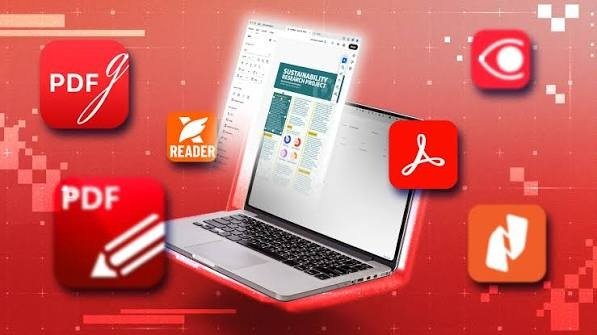
PDF files are widely used for business documents, school assignments, reports, invoices, and personal records. They are easy to share and keep their formatting consistent across different devices. However, editing a PDF can sometimes be difficult without the right software.
Fortunately, you do not always need expensive software to edit PDF documents. Many free tools allow you to add text, highlight important information, sign documents, merge files, and manage PDF pages.
Finding the best free PDF editing tools can save both time and money. In this guide, we will explore ten useful PDF editors, their main features, and how they can help you manage documents more easily.
1. PDFgear
PDFgear is a useful option for people who want a free PDF editing solution. It offers tools for editing text, adding images, highlighting content, signing documents, and converting files.
Its desktop version also includes OCR features that help extract text from scanned documents. This makes it useful for students, professionals, and everyday users.
Official website: https://www.pdfgear.com/
2. PDF24 Tools
PDF24 Tools provides several free utilities for managing PDF documents. Users can merge, split, compress, rotate, and convert PDF files.
It also offers PDF24 Creator, a Windows application that allows users to work with PDF documents offline.
This tool is a good choice for people who regularly manage multiple PDF files.
Official website: https://tools.pdf24.org/
3. Sejda PDF Editor
Sejda is an online PDF editor with a simple and beginner-friendly interface. It allows users to edit text, add links, insert images, and sign PDF documents.
Its free version includes usage restrictions. However, it can be useful for occasional editing tasks when you do not want to install additional software.
Official website: https://www.sejda.com/pdf-editor
4. LibreOffice Draw
LibreOffice Draw is a free desktop application that can open and edit many PDF documents.
Users can modify text objects, move images, adjust page elements, and export edited documents. It also works offline, making it useful for people who prefer desktop software.
Some complex PDF layouts may change when imported or exported, so always check the final document.
Official website: https://www.libreoffice.org/
5. iLovePDF
iLovePDF is a popular online platform for managing PDF documents. It offers tools for merging, splitting, compressing, and converting files.
Its interface is simple, so beginners can complete common PDF tasks without much difficulty.
Some advanced features and higher usage limits require a paid subscription.
Official website: https://www.ilovepdf.com/
6. Smallpdf
Smallpdf provides online tools for editing and managing PDF files. Users can add text, highlight information, compress documents, and convert files.
Its clean interface makes it suitable for people who want to complete simple tasks quickly.
However, free users may face daily usage limits, and some advanced features require a subscription.
Official website: https://smallpdf.com/
7. Adobe Acrobat Online
Adobe Acrobat is one of the most recognized names in PDF software. Its online tools support basic document tasks such as adding comments, highlighting text, filling forms, and signing documents.
It is a useful option for people who want to work with PDF files through a trusted platform.
Keep in mind that advanced editing features, including many existing-text editing options, require a paid plan.
Official website: https://www.adobe.com/acrobat/online.html
8. PDFescape
PDFescape is an online PDF editor that helps users add text, create annotations, fill forms, and insert basic elements.
It can be useful when you need to make quick changes without installing desktop software.
The free version has certain feature and document limitations, but it remains a practical option for simple PDF tasks.
Official website: https://www.pdfescape.com/
9. Canva PDF Editor
Canva is a popular design platform that also supports PDF importing and editing.
Users can adjust supported design elements, add graphics, change layouts, and create attractive documents.
It is particularly useful for presentations, brochures, flyers, and visually appealing PDF files. Some premium design elements require a Canva Pro subscription.
Official website: https://www.canva.com/
10. Apple Preview
Apple Preview is a built-in macOS application for viewing and managing PDF documents.
It allows users to highlight text, add notes, sign documents, and rearrange pages. Since it comes with macOS, users do not need to purchase separate software for basic PDF tasks.
However, it does not provide full editing of existing PDF text.
Official website: https://support.apple.com/guide/preview/welcome/mac
How to Choose the Right PDF Editor
Before selecting a PDF editor, consider your requirements.
- Editing text: Choose a tool that supports changing existing PDF text.
- Ease of use: Look for a simple interface.
- File security: Check how the platform handles uploaded documents.
- Compatibility: Make sure the tool supports your device.
- Free features: Review file-size limits and daily usage restrictions.
For confidential documents, consider an offline desktop editor instead of uploading files to an online service.
Final Thoughts
Free PDF editors make document management easier without requiring expensive subscriptions. PDFgear is a useful choice for general editing, PDF24 is excellent for managing documents, and Sejda is suitable for occasional online editing.
Other options, such as LibreOffice Draw, Smallpdf, and Adobe Acrobat Online, also provide useful features for different requirements.
Compare their features before choosing one. The best option depends on the type of editing you need and how frequently you work with PDF documents.
You can also explore easy document management solutions to improve your everyday document workflow.