Scanned documents are useful for storing important information, but editing them can be difficult. A scanned PDF or image often contains pictures of text instead of actual editable words. This makes copying, searching, and updating information challenging.
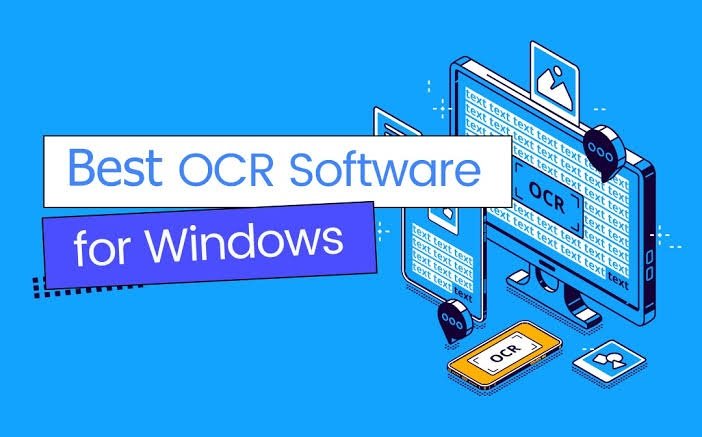
Fortunately, Optical Character Recognition (OCR) software can solve this problem. OCR technology reads text from scanned images and converts it into digital content. You can then edit, copy, search, and organize the extracted information.
The good news is that you do not always need expensive software. Several free OCR tools offer useful features for students, professionals, and small businesses. In this guide, we will explore the best free OCR software for scanned documents and explain how to choose the right option.
What Is OCR Software?
OCR stands for Optical Character Recognition. It is a technology that identifies printed or handwritten characters in images and scanned documents.
For example, imagine you have a scanned invoice saved as a PDF. You cannot select or edit its text because the document contains an image. OCR software analyzes that image and recognizes the words.
After processing, you can extract the text into an editable format. Some applications also preserve the original document layout.
OCR is especially useful for digitizing old records, processing invoices, managing paperwork, and organizing business documents.
1. Google Drive
Google Drive offers a convenient OCR feature through Google Docs. Users can upload scanned PDFs or image files and open them with Google Docs.
The platform automatically attempts to recognize the text and extract it into an editable document. This makes it useful for basic conversion tasks.
Google Drive is particularly helpful for students and people who already use Google’s online services. You can access your documents from different devices and organize them in cloud storage.
However, complicated layouts, tables, and images may not convert perfectly. You may need to correct the formatting manually.
2. Tesseract OCR
Tesseract OCR is a popular open-source text recognition engine. It can identify text in scanned images and convert it into machine-readable content.
One of its biggest advantages is flexibility. Developers can integrate it into applications, automate document processing, and customize OCR workflows.
Tesseract supports multiple languages and works with different image formats. However, it is primarily command-line software, so beginners may find its setup challenging.
It is a strong choice for technical users who want a free and customizable OCR solution.
3. NAPS2
NAPS2, also known as Not Another PDF Scanner 2, is a free scanning application with built-in OCR support.
It allows users to scan physical documents, create PDFs, and make scanned text searchable. This combination makes it practical for offices and home users.
The software supports different scanners and offers useful document management features. You can also work with existing PDF files.
NAPS2 is a good option if you regularly scan paperwork and want searchable digital copies without purchasing expensive software.
4. PDFgear
PDFgear is a useful option for people who want OCR and PDF editing features in one application.
It helps users work with PDF documents and extract text from scanned files. You can also use its PDF editing tools to manage digital documents.
Its simple interface makes it suitable for everyday tasks. Users who regularly handle scanned reports, forms, and business paperwork may find it particularly helpful.
However, always check the available OCR features and supported languages before processing large document collections.
5. OCRmyPDF
OCRmyPDF is a free, open-source tool designed to make scanned PDF documents searchable.
It adds an invisible text layer to scanned pages. This means the original document appearance remains visible while users can search, select, and copy recognized text.
The software is particularly useful for businesses, researchers, and people managing large document collections.
However, OCRmyPDF is mainly a command-line tool. Beginners may need some technical knowledge to install and operate it.
How to Choose the Right Free OCR Software
Choosing the right OCR application depends on your requirements. Consider these important factors before installing a tool.
- Accuracy: Choose software that recognizes printed text correctly.
- Language Support: Check whether it supports the language used in your documents.
- File Formats: Make sure it supports PDFs, JPGs, and PNGs.
- Privacy: Prefer offline software when processing confidential documents.
- Ease of Use: Beginners should choose applications with simple interfaces.
- Export Options: Check whether you can save recognized text as Word, PDF, or plain text.
These features help you select software that matches your daily requirements.
Tips for Getting Better OCR Results
Even good OCR software can produce errors when the original scan is unclear. Follow these simple tips to improve recognition quality.
- Scan documents at a suitable resolution.
- Keep pages straight and avoid tilted images.
- Use good lighting when capturing documents with a camera.
- Select the correct recognition language.
- Remove unnecessary shadows and background noise.
- Review the extracted text before saving or sharing it.
These steps can improve the quality of your converted documents and reduce manual corrections.
Benefits of Using Free OCR Software
Free OCR applications offer several advantages for personal and professional use.
First, they reduce the time required to enter information manually. Instead of typing an entire document, you can extract its text automatically.
Second, searchable documents are easier to organize. You can find specific words without reading every page.
Third, OCR improves productivity for businesses that handle invoices, receipts, reports, and customer records.
Finally, digital text is easier to edit, share, and store than large collections of scanned paper documents.
Conclusion
The best free OCR software for scanned documents depends on your needs and technical experience. Google Drive is convenient for quick conversions, while NAPS2 is useful for scanning and creating searchable PDFs. Tesseract offers flexibility for advanced users, and PDFgear provides PDF editing features alongside OCR.
OCRmyPDF is another strong choice for making existing scanned PDFs searchable.
Before choosing a tool, test it with a few sample documents. Compare the extracted text, formatting, language support, and privacy options. The right software can save time, reduce paperwork, and make digital document management much easier.