When you change a domain’s DNS records, the update may not appear everywhere immediately. This delay is known as DNS propagation. If your website, email, or another online service is not working after a DNS change, checking propagation can help you determine whether the new record has reached different DNS servers.
In this guide, you will learn how to check DNS propagation, what DNS propagation means, how to verify your records, and what to do if your changes are not showing correctly.
What Is DNS Propagation?
DNS propagation is the process through which updated DNS information becomes available across DNS servers around the internet.
For example, you may change an A record, CNAME record, MX record, or TXT record for your domain. Your DNS provider may save the change immediately, but different DNS resolvers can continue showing the old information for some time.
This happens mainly because DNS records are cached. The amount of time a record stays cached depends on its TTL, or Time to Live, value.
Because of this caching, your DNS change may work from one location while another location still shows the previous record.
How to Check DNS Propagation
There are several ways to check whether your DNS changes have propagated successfully.
1. Use an Online DNS Checker
The easiest method is to use an online DNS propagation checker. These tools query DNS servers in different locations and show the records they currently return for your domain.
Enter your domain name into the checker and select the DNS record type you recently changed.
For example:
- A record – checks your website’s IP address
- CNAME record – checks a domain alias
- MX record – checks email servers
- TXT record – checks verification or other text records
- NS record – checks nameservers
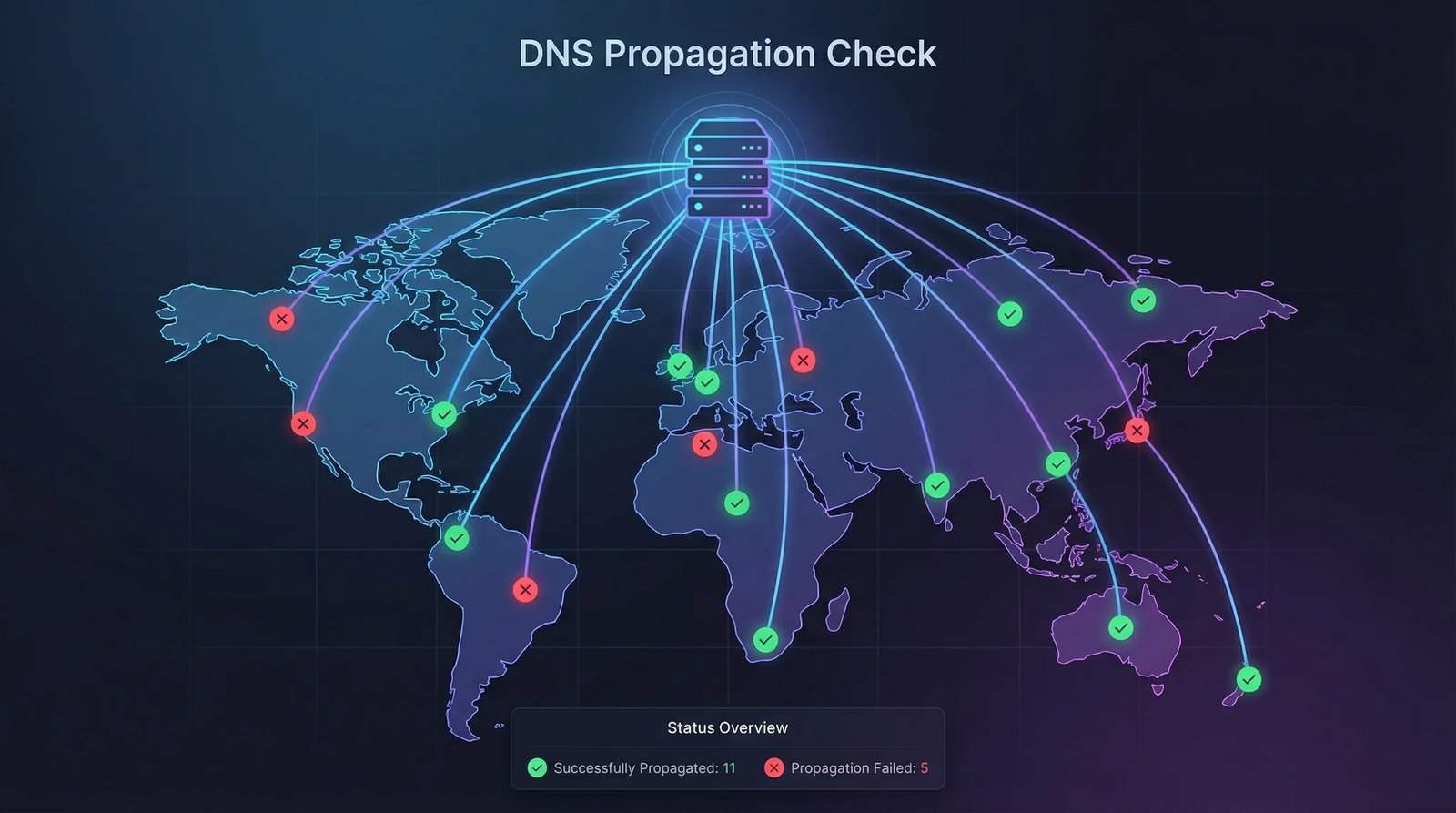
The results can help you identify whether different locations are returning the new DNS information.
2. Compare DNS Results From Different Locations
When checking propagation, do not worry if every location does not show the new record immediately.
If some DNS servers show your new record while others show the old value, propagation may still be in progress. Wait and check again later.
If almost every location returns the correct record, your DNS change has likely propagated successfully.
You can use an online tool to check DNS propagation worldwide and compare results from different DNS locations.
3. Check DNS Records Using Windows
Windows users can also check DNS records directly from Command Prompt.
Open Command Prompt and run:
nslookup example.comReplace example.com with your domain.
To check a specific record, you can use commands such as:
nslookup -type=TXT example.comFor an MX record, use:
nslookup -type=MX example.comThese commands allow you to see what DNS information a resolver is returning for your domain.
How Long Does DNS Propagation Take?
DNS propagation does not have one fixed duration. In many cases, DNS changes become visible within a few hours, but some changes can take longer depending on DNS caching and TTL settings.
If you have recently changed your nameservers, the process can sometimes take longer than changing an individual DNS record.
You should avoid repeatedly changing the same DNS record while waiting for propagation. Frequent changes can make troubleshooting more confusing because different DNS servers may have cached different versions of the record.
How to Know if DNS Has Propagated
Your DNS change is generally considered propagated when DNS queries from different locations consistently return the new record.
For example, suppose you changed your domain’s A record to a new IP address. If DNS checkers from multiple locations return the new IP address, the update is reaching those DNS servers correctly.
You should also test the actual service connected to the DNS record. If you changed an MX record, for example, verify that your email service is configured correctly in addition to checking the DNS result.
What If DNS Propagation Is Not Complete?
If your DNS change is still showing an old value, first confirm that you entered the record correctly in your DNS provider’s control panel.
Check the following:
- Make sure the record name or host is correct.
- Confirm that the record type is correct.
- Check that the value was entered without unnecessary spaces.
- Verify that there are no conflicting DNS records.
- Make sure your domain is using the correct nameservers.
- Give DNS caches enough time to update.
If the record is correct but some locations still show an older value, waiting may be necessary.
Clear Your Local DNS Cache
Sometimes the problem is not global DNS propagation but your own computer’s cached DNS information.
On Windows, open Command Prompt as administrator and run:
ipconfig /flushdnsYou should receive a message confirming that the DNS resolver cache was successfully cleared.
After clearing the cache, try accessing your website again or run another DNS lookup.
Final Thoughts
Knowing how to check DNS propagation is useful whenever you update DNS records for a website, email service, domain verification, or another online service. An online DNS checker can help you compare results from different locations, while tools such as nslookup can help you verify individual records from your computer.
Remember that DNS changes are not always visible everywhere immediately. If your DNS provider shows the correct record but some locations still return the old information, the update may simply need more time to propagate.