Introduction
Managing business purchases is an important part of running a successful small business. Whether you buy office supplies, raw materials, equipment, or products for resale, keeping accurate purchase records can help you avoid mistakes and control expenses.
A purchase order (PO) is an official document that a business sends to a supplier when ordering products or services. It explains what the business wants to purchase, how much it needs, and what price has been agreed upon.
For small businesses, purchase orders provide a simple way to organize spending and maintain clear communication with suppliers.
The good news is that creating a purchase order does not require expensive software. You can start with a basic template and improve your process as your business grows.
1. Understand What a Purchase Order Includes
Before creating a purchase order, it is important to understand its main components.
A professional purchase order should contain enough information for both the buyer and supplier to understand the transaction.
Include these essential details:
- Business name and contact information.
- Purchase order number.
- Order creation date.
- Supplier name and address.
- Product or service descriptions.
- Quantity of each item.
- Unit price.
- Total purchase amount.
- Payment terms.
- Expected delivery date.
These details help prevent confusion and make it easier to track business purchases.
2. Choose a Purchase Order Template
The easiest way to create a purchase order is to use a ready-made template.
Small businesses can use spreadsheet applications or document editors to prepare professional purchase orders.
For example, Microsoft Excel and Google Sheets allow users to create customized templates with automatic calculations.
A simple template should include columns for item names, quantities, prices, and totals.
You can also add your company logo and contact details to make the document look professional.
Using the same template for every order saves time and keeps business records consistent.
3. Assign a Unique Purchase Order Number
Every purchase order should have a unique identification number.
This number helps you identify individual transactions and find documents when needed.
For example, you can use a numbering system such as:
- PO-001
- PO-002
- PO-003
- PO-004
You can also include the year in your numbering system, such as PO-2026-001.
Avoid using the same purchase order number twice. A consistent numbering system makes recordkeeping easier and reduces administrative mistakes.
4. Add Supplier and Business Information
The next step is to enter the buyer’s and supplier’s information.
Start by adding your business name, address, phone number, and email address.
Then include the supplier’s official business name and contact details.
Make sure the information is accurate before sending the purchase order.
Incorrect supplier details can cause communication problems or delivery delays.
It is also useful to include the name of the person responsible for receiving the order. This helps suppliers contact the right person if they have questions.
5. List Products and Calculate Costs
Now add the products or services you want to purchase.
Each item should have a clear description, quantity, and unit price.
For example, a small office purchasing stationery might include:
| Item | Quantity | Unit Price | Total |
|---|---|---|---|
| Notebooks | 20 | $3 | $60 |
| Pens | 50 | $1 | $50 |
| Printer Paper | 10 | $5 | $50 |
| Subtotal | $160 |
After adding the items, calculate the subtotal.
Include applicable taxes, shipping charges, or other fees. Then calculate the final amount.
Check every figure carefully before sending the document to the supplier.
6. Include Payment and Delivery Terms
Payment and delivery terms explain how and when the transaction should be completed.
For example, your purchase order may specify:
- Payment due within 15 days.
- Bank transfer as the payment method.
- Delivery within seven business days.
- Delivery to your business address.
- Special packaging instructions.
Clear terms help both parties understand their responsibilities.
If you have negotiated a discount or special price with the supplier, include that information as well.
7. Review and Approve the Purchase Order
Before sending your purchase order, review the entire document.
Check the supplier’s details, item descriptions, quantities, prices, and delivery information.
Make sure the total amount is correct.
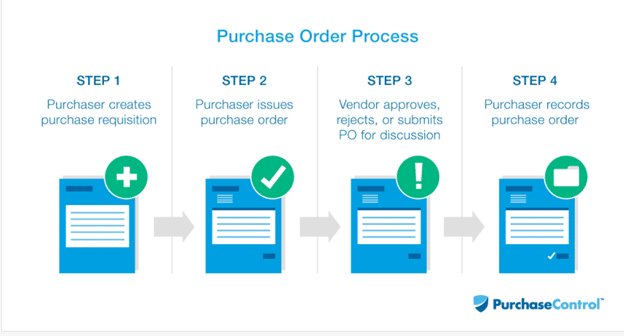
For businesses with multiple employees, an approval process can help control unnecessary spending.
For example, a manager may need to approve purchases above a specific budget.
Once everything is correct, the authorized person can approve the document.
8. Send and Track the Purchase Order
After approval, send the purchase order to your supplier through email or another agreed communication method.
Ask the supplier to confirm receipt and review the order details.
Keep a copy of the purchase order in your business records.
When the products arrive, compare the delivery with the original purchase order. Check quantities, product quality, and any missing items.
This process helps identify problems before making the final payment.
Benefits of Purchase Orders for Small Businesses
Purchase orders offer several advantages for small businesses.
Better Expense Control: They help business owners monitor spending and avoid unnecessary purchases.
Fewer Ordering Mistakes: Written product details reduce confusion between buyers and suppliers.
Improved Recordkeeping: Purchase orders create a clear record of business transactions.
Supplier Communication: Both parties can refer to the same document when discussing an order.
Easier Financial Management: Purchase orders help businesses compare expected costs with actual expenses.
Following a consistent purchasing process can make daily operations more organized.
Common Purchase Order Mistakes to Avoid
Small businesses should avoid several common mistakes when preparing purchase orders.
First, never send an order without checking product quantities and prices.
Second, avoid missing delivery dates or payment terms. These details are important for managing expectations.
Third, do not reuse purchase order numbers. Every transaction should have its own reference number.
Finally, keep purchase orders organized. Saving documents digitally can make future searches much easier.
Conclusion
Learning how to create a purchase order for a small business can improve purchasing accuracy and financial organization.
Start with a simple template, add complete supplier information, list products clearly, and calculate costs carefully. Always review the document before sending it for approval.
You do not need complicated software to get started. A spreadsheet or basic document template can work well for a small business.
As your business grows, you can introduce purchasing software and approval systems to manage larger orders. A consistent purchase order process will help you control expenses, maintain supplier relationships, and keep better business records.