Publishing a new webpage does not mean Google will index it immediately. Search engines need to discover, crawl, and process your page before it can appear in search results. If your new page is not showing in Google, you can use Google Search Console to request indexing.
Learning how to request indexing in Google Search Console can help you notify Google about a new or recently updated URL. However, a request does not guarantee that Google will index the page.
What Is Indexing in Google?
Indexing is the process through which Google analyzes and stores information about webpages that it discovers. When Google indexes a page, the page can potentially appear in relevant search results.
Google discovers URLs in different ways, including links from other pages and XML sitemaps. You can also submit an individual URL through Google Search Console when you want Google to recrawl it.
When Should You Request Indexing?
You may request indexing when you publish a new page or make significant changes to an existing page.
For example, requesting indexing can be useful after:
- Publishing a new blog post
- Updating important website content
- Fixing technical SEO problems
- Changing important information on a page
- Adding substantial new content
- Moving content to a new URL
You do not need to submit every page repeatedly. Google can discover many URLs automatically through normal crawling.
Step 1: Open Google Search Console
First, sign in to Google Search Console and select the correct website property.
Make sure you choose the property that contains the URL you want Google to crawl. If your website has different properties, check that you are working with the correct domain or URL-prefix property.
Step 2: Open the URL Inspection Tool
After selecting your website, find the URL Inspection tool in Google Search Console.
You will see a search field where you can enter the URL of the page you want to check.
Copy the complete URL from your website and paste it into the inspection field. Make sure the URL is correct and includes the appropriate HTTPS version if your website uses SSL.
Step 3: Inspect the URL
Press Enter or start the inspection.
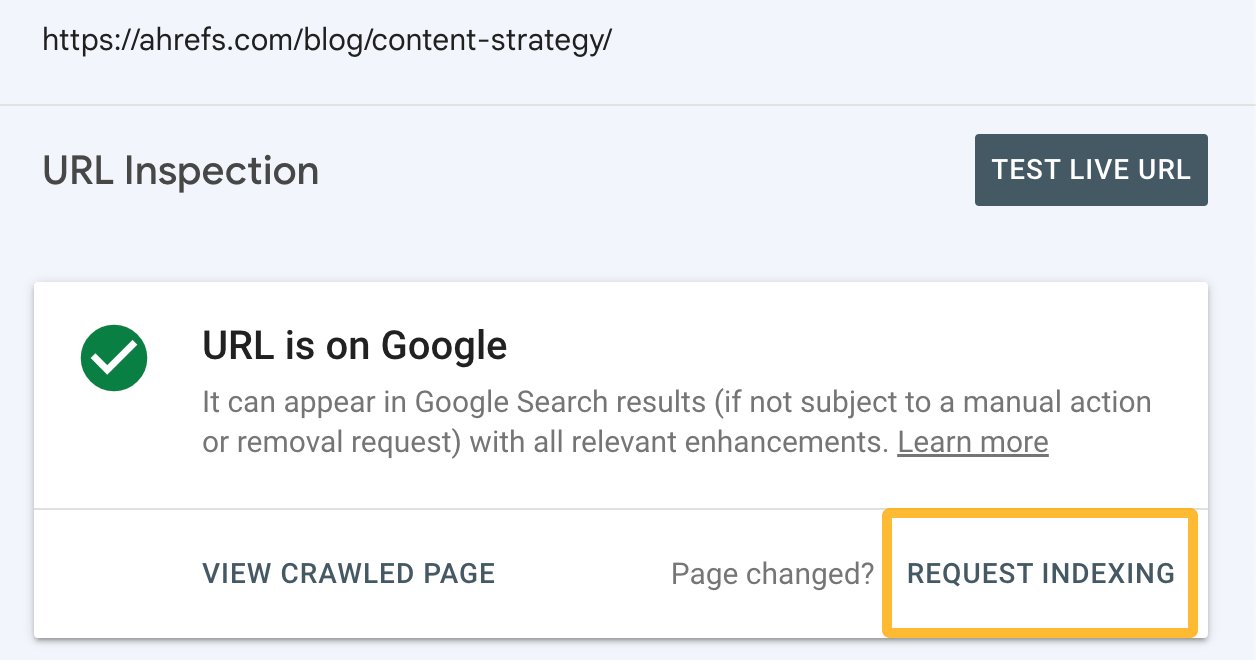
Google Search Console will analyze the URL and display information about its current status. If Google has already indexed the page, you may see an indication that the URL is available on Google.
If the page has not been indexed, Search Console may provide information about the current indexing status.
Review the information before requesting another crawl.
Step 4: Fix Problems Before Requesting Indexing
If Search Console identifies an issue, fix it before submitting the URL.
For example, check whether the page has an unwanted noindex directive, incorrect canonical settings, crawling restrictions, server errors, or other technical problems.
Also make sure that the page loads correctly and provides useful, original content.
Fixing the underlying problem is more important than repeatedly requesting indexing.
Step 5: Click Request Indexing
Once the page is ready, return to the URL Inspection tool.
If the URL is eligible for the request, select Request Indexing. Google Search Console may perform a quick test before accepting the request.
The process can take some time. After the request is submitted, Google may place the URL into its crawling queue.
Keep in mind that requesting indexing does not guarantee that the page will appear in Google Search results.
Step 6: Check Your Sitemap
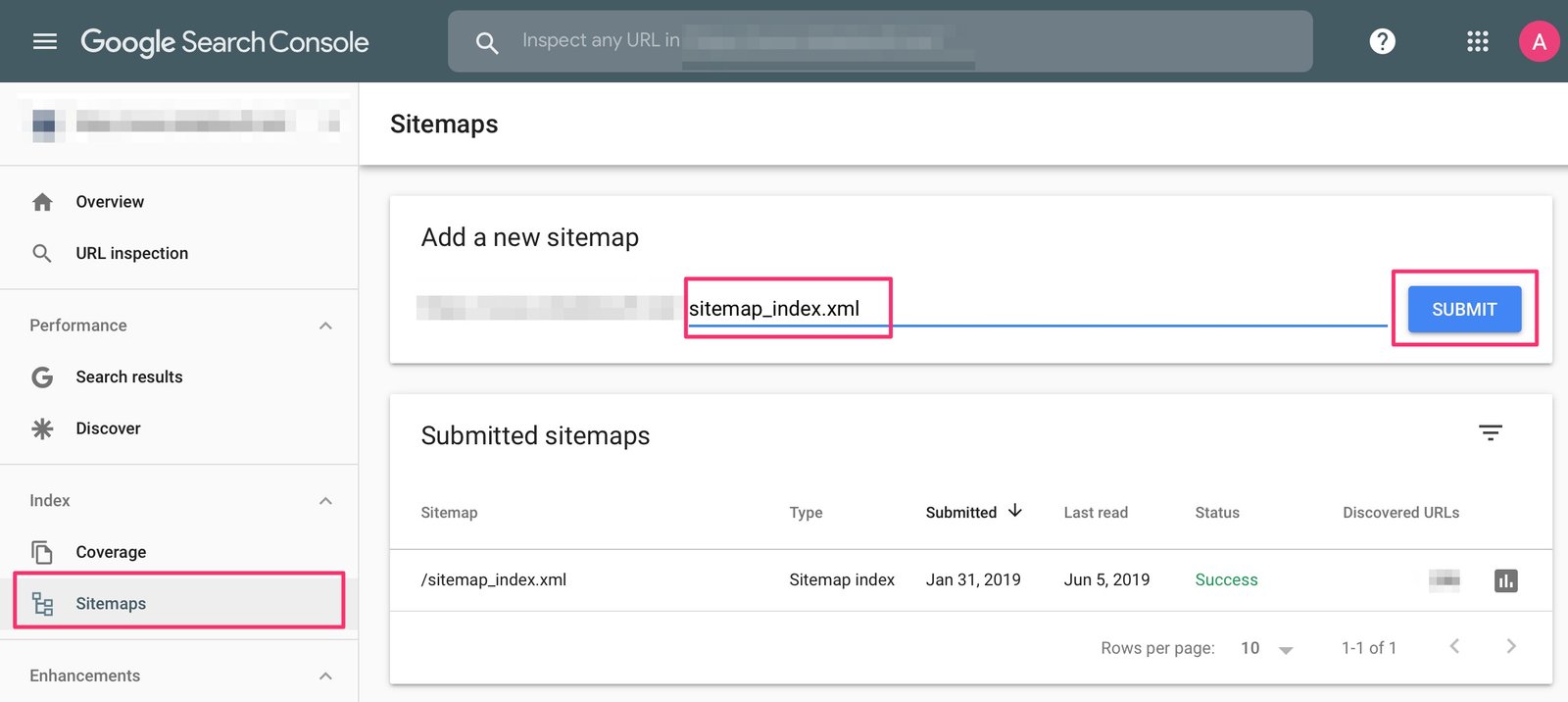
Your XML sitemap is another useful way to help Google discover website URLs.
Make sure your important page is included in the sitemap and that the sitemap is accessible. You can submit your sitemap through the Sitemaps section of Google Search Console.
For larger websites, a properly maintained sitemap can make URL discovery easier.
Step 7: Add Internal Links
Internal links can also help Google discover your content.
Add relevant links from existing pages to the new page. Use natural and descriptive anchor text that tells visitors what they will find after clicking the link.
For example, you could use submit a URL for Google indexing when linking to a relevant guide about the indexing process.
Avoid adding excessive internal links or using the same anchor text unnaturally across many pages.
How Long Does Google Take to Index a Page?
There is no fixed timeframe for indexing. Google may crawl some pages relatively quickly, while others can take longer.
Several factors can affect crawling and indexing, including website structure, technical accessibility, content quality, internal links, and Google’s own crawling systems.
Therefore, do not assume that a page will appear immediately after submitting a request.
What If Your Page Is Still Not Indexed?
If your page remains unindexed after requesting indexing, inspect the URL again in Google Search Console.
Look for any reported indexing or crawling issues. Check the page’s robots.txt rules, noindex settings, canonical URL, redirects, and server response.
You should also make sure the page offers useful content rather than simply repeating information already available elsewhere on your website.
Final Thoughts
Knowing how to request indexing in Google Search Console makes it easier to notify Google about new or updated content. The process starts with URL Inspection, followed by checking the page and selecting Request Indexing when available.
Remember that a manual indexing request is not a guarantee of inclusion in Google’s search index. Before submitting your URL, make sure the page is accessible, technically configured correctly, useful to visitors, and connected to your website through relevant internal links.
With proper technical SEO and a well-structured website, you can make it easier for Google to discover and process your important pages.