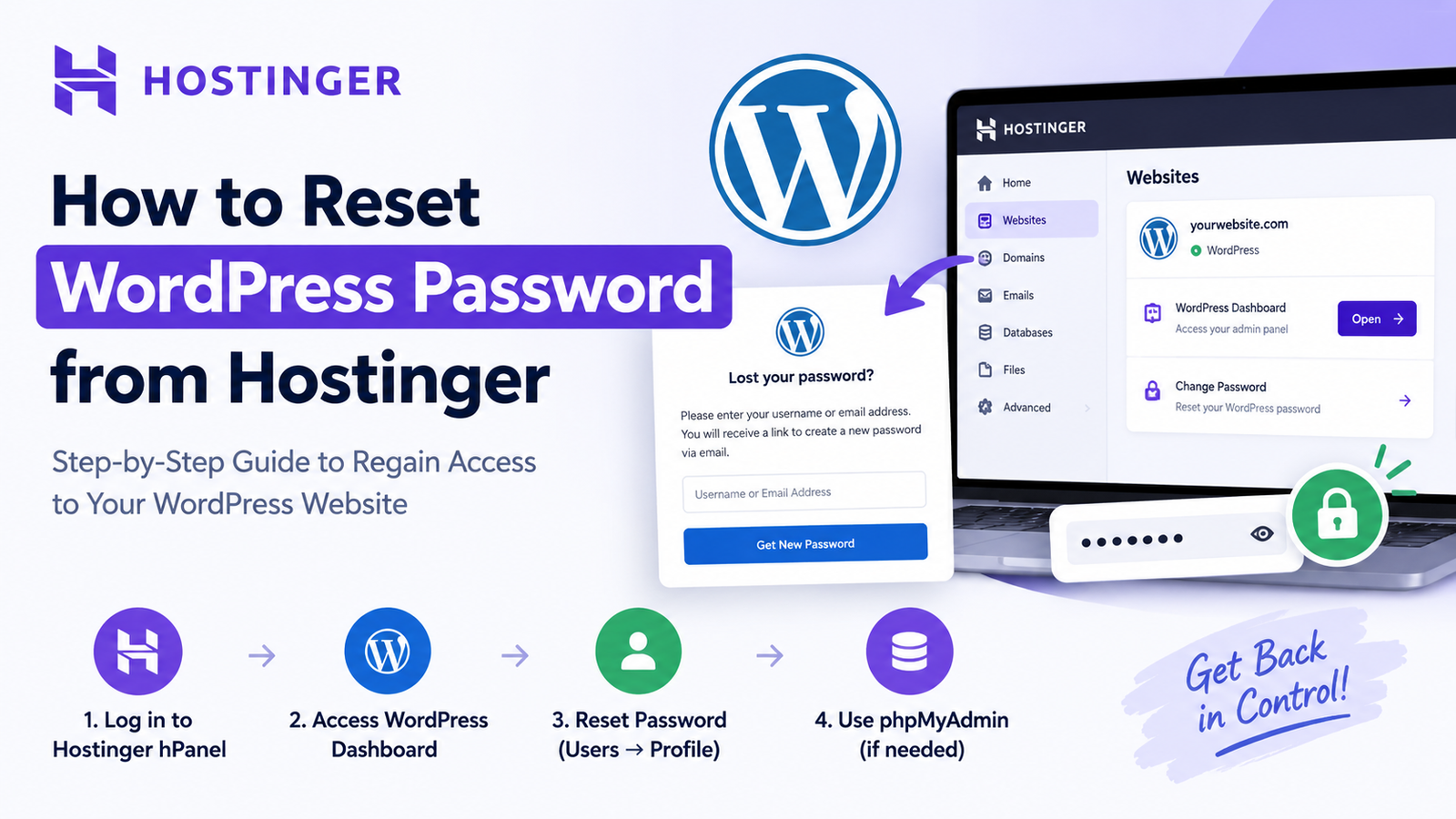
Forgetting your WordPress password can prevent you from accessing your website dashboard. Fortunately, if your website is hosted on Hostinger, you have several ways to regain access. You can use the WordPress password recovery option, access WordPress through Hostinger, or reset the password directly from phpMyAdmin.
In this guide, we will explain how to reset WordPress password from Hostinger step by step. These methods are useful whether you have forgotten your password or cannot receive the normal WordPress reset email.
Why Reset Your WordPress Password?
There are several reasons why you may need to reset your WordPress password. You may have forgotten your login details, lost access to your old password, or suspect that someone else has accessed your account.
A strong and unique password is important for protecting your website. Therefore, if you think your password has been compromised, changing it quickly is a good security step.
Before making database changes, however, it is better to try the standard WordPress recovery method first.
Method 1: Reset WordPress Password From the Login Page
The easiest method is to use the WordPress login page.
First, open your WordPress login URL. In most cases, you can visit:
yourdomain.com/wp-admin
You can also use the WordPress login page directly.
Next, click “Lost your password?” below the login form. Enter the username or email address connected to your WordPress account.
After that, click the password reset button. WordPress will send a password reset link to your registered email address. Open the email and follow the link to create a new password.
Choose a strong password that you do not use on another website.
Method 2: Access WordPress Through Hostinger
Hostinger also provides a convenient way to access your WordPress website from its dashboard.
Log in to your Hostinger account and open Websites. Select the website you want to manage and open its dashboard.
Depending on your current Hostinger interface, look for the WordPress management or dashboard section. Hostinger provides a shortcut that can take you directly to your WordPress admin area without requiring you to enter the WordPress password again.
Once you are inside WordPress, go to:
Users → Profile → Account Management
Here, you can generate or enter a new password and save the changes. Hostinger’s current WordPress password guide also recommends the dashboard method when you still have access to WordPress.
If you want to improve your site’s security, you can also reset your WordPress admin password securely and make sure the new password is unique.
Method 3: Reset WordPress Password Using phpMyAdmin
If you cannot access WordPress and the password recovery email is not working, phpMyAdmin can be used as an alternative.
First, log in to Hostinger and open your website dashboard. Go to the Databases section and open phpMyAdmin for the database connected to your WordPress installation.
Before changing anything, create a database backup. This gives you a way to restore your data if you accidentally modify the wrong record.
Next, open the WordPress database and locate the wp_users table. Your website may use a different table prefix, so the table might have a name such as abc_users.
Open the table and find the user account whose password you want to change. Click Edit.
Find the user_pass field and enter your new password. In the Function field, select MD5, then save the changes. Hostinger documents this phpMyAdmin process as a recovery option when you cannot access the dashboard or normal email recovery.
After saving the change, return to your WordPress login page and try signing in with your username and new password.
What to Do After Resetting Your Password
Once you regain access, take a few additional security steps. First, make sure your new password is unique and difficult to guess. Avoid using names, birthdays, or passwords that you already use on other websites.
You should also check your WordPress users and remove any account that you do not recognize. If you believe someone accessed your website without permission, review your plugins, themes, and recent activity as well.
For database-based changes, always be careful when editing WordPress tables. A small mistake can affect your website, so keeping a recent backup is important.
Conclusion
Knowing how to reset WordPress password from Hostinger can help you regain access without unnecessary downtime. Start with the normal “Lost your password?” option because it is the simplest method. If you can access WordPress through Hostinger, change the password from your user profile. Finally, use phpMyAdmin when other recovery options are unavailable.
With the right method and a secure new password, you can quickly regain control of your WordPress website.