WordPress permalinks help create readable URLs for your website pages and posts. However, sometimes permalinks stop working correctly. You may see 404 errors, broken links, or pages that cannot be opened even though the content exists in your WordPress dashboard.
If you are dealing with this issue, there is no need to panic. In most cases, you can fix the problem by refreshing your permalink settings or checking a few important WordPress configuration options.
This guide explains how to fix WordPress permalinks not working with simple steps.
Why Are WordPress Permalinks Not Working?
There are several possible reasons why WordPress permalinks may stop working.
A recent change to your permalink structure can cause old URLs to fail. Similarly, a plugin conflict, incorrect rewrite rules, or a damaged .htaccess file can also create problems.
Sometimes, the issue happens after moving a website to a new hosting provider or changing your domain.
Before making complicated changes, start with the simplest solution: saving your permalink settings again.
1. Save Permalink Settings Again
The easiest way to refresh WordPress rewrite rules is to save the permalink settings again.
First, log in to your WordPress dashboard.
Then go to:
Settings → Permalinks
You do not necessarily need to change the selected option. Simply review your current permalink structure and click Save Changes.
WordPress will refresh its rewrite rules.
Now open one of your posts or pages in a new browser tab. If the problem was caused by outdated rewrite rules, the URL may start working again.
2. Check Your Permalink Structure
Next, check whether your permalink structure is configured correctly.
Go to:
Settings → Permalinks
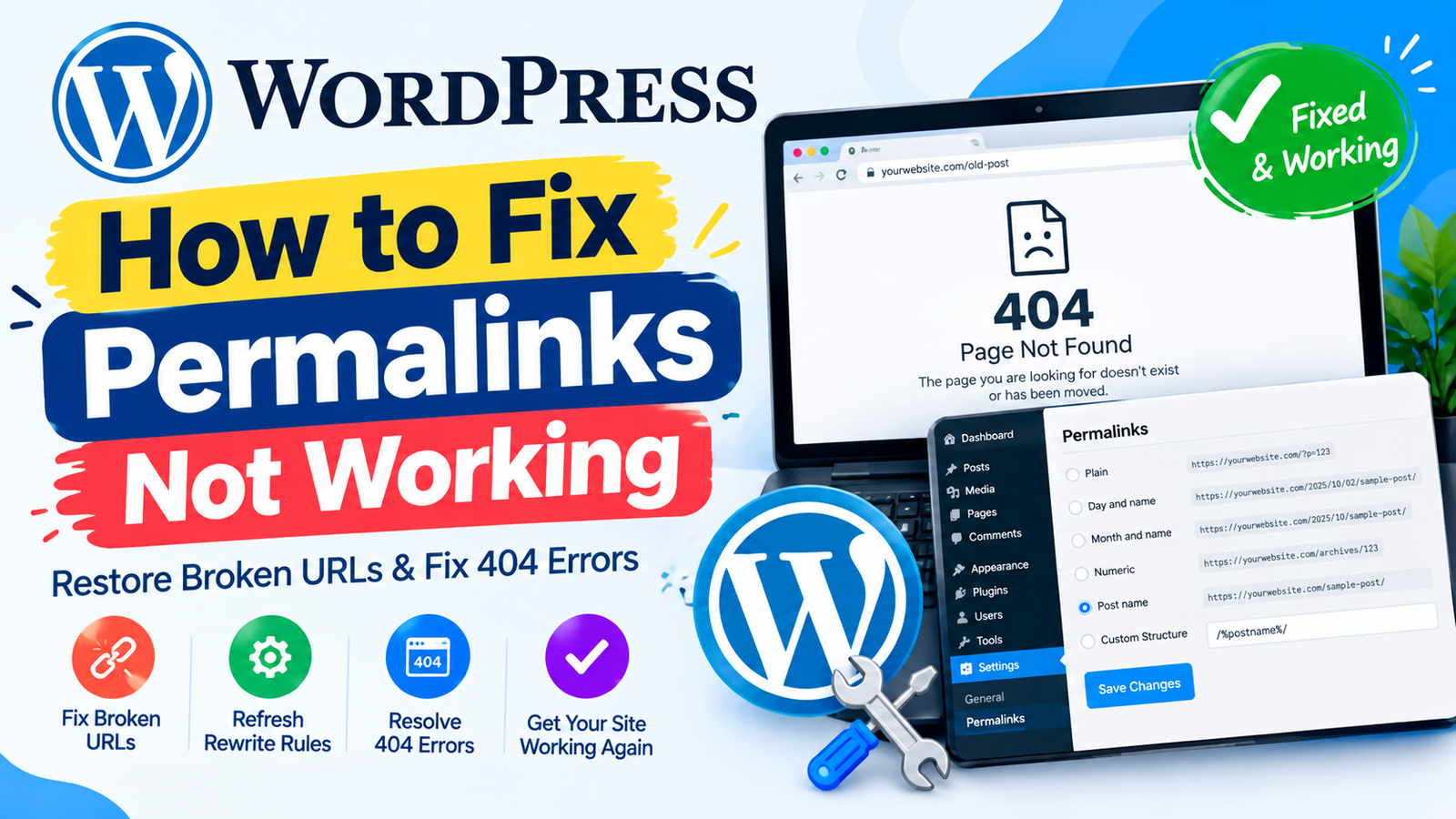
You will see several options, including Plain, Day and name, Month and name, Numeric, Post name, and Custom Structure.
For many blogs, the Post name structure provides simple and readable URLs.
After selecting your preferred structure, click Save Changes.
Then test your website again.
3. Check for Plugin Conflicts
Plugins can sometimes interfere with WordPress URL rewriting. This is especially possible with plugins that manage redirects, caching, security, or website optimization.
If saving the permalink settings does not solve the problem, temporarily deactivate your plugins.
You can do this from:
Plugins → Installed Plugins
Deactivate the plugins and then test a broken URL.
If the permalink starts working, reactivate the plugins one at a time. This can help you identify which plugin is causing the problem.
Once you find the conflicting plugin, check whether an update is available or contact its developer for support.
4. Clear Your Website Cache
Caching can sometimes display an old version of your website.
If you use a WordPress caching plugin, clear its cache. You should also clear the cache provided by your hosting company if that option is available.
After clearing the cache, open the broken URL again.
It can also help to test the page in a private browser window. This prevents your normal browser cache from affecting the test.
5. Check the .htaccess File
On Apache-based WordPress hosting, the .htaccess file contains important rewrite rules.
If this file is missing or contains incorrect rules, WordPress permalinks may not work properly.
The standard WordPress .htaccess rules normally look similar to this:
# BEGIN WordPress
<IfModule mod_rewrite.c>
RewriteEngine On
RewriteBase /
RewriteRule ^index\.php$ - [L]
RewriteCond %{REQUEST_FILENAME} !-f
RewriteCond %{REQUEST_FILENAME} !-d
RewriteRule . /index.php [L]
</IfModule>
# END WordPress
Before editing .htaccess, create a backup. A small mistake in this file can affect your website.
If you are not comfortable editing server files, ask your hosting provider for assistance.
6. Check Your WordPress Site URL
An incorrect WordPress URL can also cause unexpected problems.
Go to:
Settings → General
Check the WordPress Address (URL) and Site Address (URL) fields.
Make sure they contain the correct domain and use the appropriate HTTPS version if your website has SSL installed.
Do not change these fields unless you know what you are doing. An incorrect URL can make your WordPress dashboard or website inaccessible.
7. Check Your Website for 404 Errors
After making changes, test several URLs on your website.
Open a few posts, pages, categories, and other important links. If some pages still return a 404 error, the issue may require additional investigation.
Also check whether the affected URLs were recently changed.
If an old URL was replaced with a new one, create a proper redirect from the old address to the new page.
8. Update WordPress and Plugins
Outdated WordPress versions or plugins can sometimes cause compatibility problems.
Go to your WordPress dashboard and check for available updates.
Update WordPress, themes, and plugins carefully. Before major updates, keep a recent website backup so you can restore your website if something goes wrong.
Final Thoughts
When WordPress permalinks stop working, start with the easiest solutions. Go to Settings → Permalinks and click Save Changes to refresh the rewrite rules.
If that does not solve the issue, check plugins, caching, the .htaccess file, and your website URL settings.
These steps can resolve many common permalink problems and help restore broken URLs. For more advanced WordPress permalink troubleshooting, check your hosting configuration or contact your hosting provider.
Always create a backup before making changes to important WordPress files or settings. With a careful approach, you can usually identify the cause and get your WordPress URLs working again.