WordPress allows visitors to leave comments on your posts and pages. Comments can be useful for discussions, but they are not always necessary. Some websites may receive spam comments, unwanted messages, or comments that require regular moderation.
If you do not want visitors to comment on your website, you can easily turn this feature off. WordPress provides several options to disable comments on new posts, existing posts, pages, or across your website.
In this guide, you will learn how to disable comments in WordPress using simple methods.
Why Disable Comments in WordPress?
There are several reasons why website owners choose to disable comments. A business website may not need public discussions, while a blog may want to avoid spam and reduce moderation work.
Disabling comments can also make your website easier to manage. You will not need to regularly check comments, remove spam, or respond to messages left under old posts.
If you want more control over your website’s discussion settings, you can Disable WordPress Comments Easily by following the steps below.
How to Disable Comments on New WordPress Posts
WordPress lets you stop comments from appearing on posts that you publish in the future.
Follow these steps:
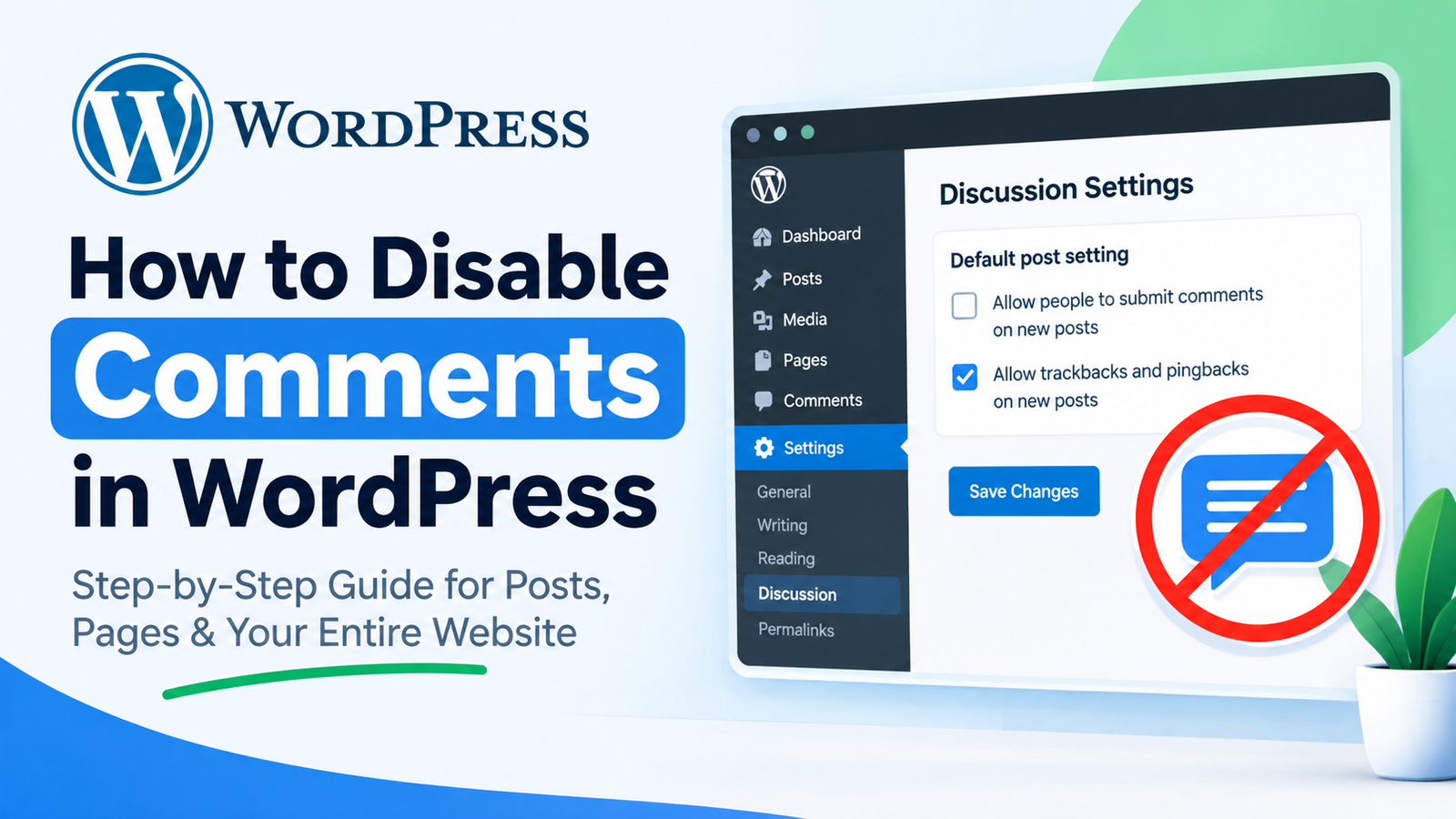
- Log in to your WordPress dashboard.
- Go to Settings.
- Click Discussion.
- Find the option that says “Allow people to submit comments on new posts.”
- Uncheck this option.
- Scroll down and click Save Changes.
After saving the settings, comments will be disabled for new posts.
Keep in mind that this setting normally affects future posts. Comments that are already enabled on older posts may still remain active.
How to Disable Comments on an Existing Post
If you want to turn off comments on a post that has already been published, you can change its discussion settings individually.
Go to your WordPress dashboard and open Posts > All Posts. Find the post where you want to disable comments and click Edit.
Depending on your WordPress editor and theme, you may find the discussion settings in the post settings panel.
Look for the Discussion section and turn off the option that allows comments. Then click Update to save your changes.
The comments section will no longer accept new comments on that particular post.
How to Disable Comments on Multiple Posts
If your website has many existing posts, disabling comments one by one can take a lot of time. WordPress provides a bulk editing option that can make this process easier.
Go to Posts > All Posts and select the posts where you want to disable comments.
Next, choose Edit from the Bulk Actions menu and click Apply. Look for the comments option and select Do not allow.
Finally, save the changes by clicking Update.
This method can be useful when you want to disable comments on several posts at once.
How to Disable Comments on WordPress Pages
Comments are often unnecessary on pages such as About, Contact, Privacy Policy, and Services pages.
To disable comments on a page, go to Pages > All Pages and edit the page you want to change.
Open the Discussion settings and turn off comments. Then click Update.
If you do not see the Discussion panel, check the editor settings or screen options because its location can vary depending on your WordPress version and configuration.
Can You Disable Comments Completely?
Yes. You can disable comments for new posts through the WordPress Discussion settings. You can also turn off comments on existing posts and pages individually or in bulk.
However, disabling comments does not necessarily remove comments that already exist. If you want to remove old comments, you may need to delete them separately from the WordPress dashboard.
Final Thoughts
Disabling comments in WordPress is useful when your website does not need public discussions or when comment moderation has become difficult to manage.
The easiest method is to open Settings > Discussion and turn off comments for new posts. For older content, you can change the discussion settings on individual posts or use WordPress’s bulk editing feature.
By choosing the right comment settings, you can keep your website easier to manage while reducing unwanted interactions and spam.