Changing your WordPress site URL may be necessary when you move your website to a new domain, switch from HTTP to HTTPS, or change the structure of your website address.
For example, you may want to change:
http://example.com
to:
https://example.com
Or you may move your website from one domain to another.
WordPress provides settings for controlling the main website address. However, changing the URL incorrectly can make your website inaccessible, so it is important to prepare before making the change.
What Is the WordPress Site URL?
WordPress commonly uses two important URL settings:
WordPress Address (URL): This is the location where the WordPress installation is stored.
Site Address (URL): This is the public address visitors use to access your website.
In many standard WordPress installations, both addresses are the same.
For example:
https://example.com
If your WordPress installation and website use different locations, these two fields may have different values.
Before Changing Your WordPress URL
Before you change the URL, create a complete backup of your website.
A backup gives you a way to restore your website if something goes wrong.
Also make sure the new domain is properly connected to your hosting account. If you are moving to a new domain, verify that the domain points to the correct server before changing the WordPress settings.
It is also helpful to keep your current URL available until you have confirmed that the new address works correctly.
How to Change WordPress Site URL From the Dashboard
The easiest method is through the WordPress dashboard.
Step 1: Log In to WordPress
Open your WordPress admin area and sign in using your administrator account.
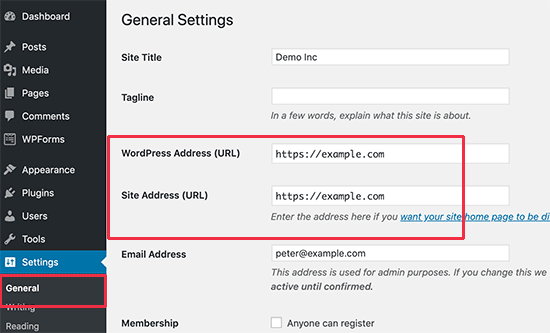
Step 2: Open General Settings
From the WordPress dashboard, go to:
Settings → General
You will see several general configuration options.
Find these two fields:
- WordPress Address (URL)
- Site Address (URL)
These fields control your website’s main URL.
Step 3: Enter the New URL
Replace the old address with your new URL.
For example, if you are switching from HTTP to HTTPS:
Old:
http://example.com
New:
https://example.com
Make sure the address is entered correctly.
Avoid adding unnecessary spaces or characters.
Step 4: Save Changes
Scroll down and click Save Changes.
WordPress will save the new URL settings.
Depending on the change, WordPress may log you out. If that happens, simply log in again using the new website address.
How to Change WordPress URL When You Cannot Access the Dashboard
Sometimes an incorrect URL makes the WordPress dashboard unavailable.
In that situation, you can change the URL using your hosting account or WordPress configuration files.
If you use Hostinger, you may have access to the File Manager and database management tools.
Another option is to define the URL in the WordPress wp-config.php file.
Before editing this file, create a backup and make sure you understand the change you are making.
What Happens After Changing the Site URL?
Changing the URL can affect links throughout your website.
For example, images, internal links, menus, and other resources may still contain the previous address.
If you changed your domain completely, you may need to update old URLs throughout the database.
A search-and-replace process can help replace the old domain with the new one, but always create a backup before making database-wide changes.
Update Internal Links
After changing your URL, check your important pages and posts.
Look for links that still point to the old address.
Also check:
- Navigation menus
- Images
- Buttons
- Internal links
- Custom code
- Widgets
- Forms
Updating these references helps prevent broken links.
Set Up Redirects
If you are moving from an old domain to a new domain, redirects are important.
A 301 redirect can send visitors and search engines from an old URL to its corresponding new URL.
Do not simply abandon the old URLs if the website has existing traffic or backlinks. Proper redirects can help visitors reach the correct pages.
Check HTTPS
If your purpose for changing the URL is to move from HTTP to HTTPS, make sure your SSL certificate is active before switching the WordPress URL.
Afterward, open your website and confirm that pages, images, scripts, and other resources load correctly over HTTPS.
Final Thoughts
Changing a WordPress site URL is easy when you are making a simple update through Settings → General. However, changing the domain or URL structure can involve additional work.
Always create a backup before making major URL changes. After updating the address, test your website, review internal links, check images, and configure redirects when moving from an old domain.
Following these steps can help you change your WordPress URL while reducing the risk of broken pages and inaccessible content.