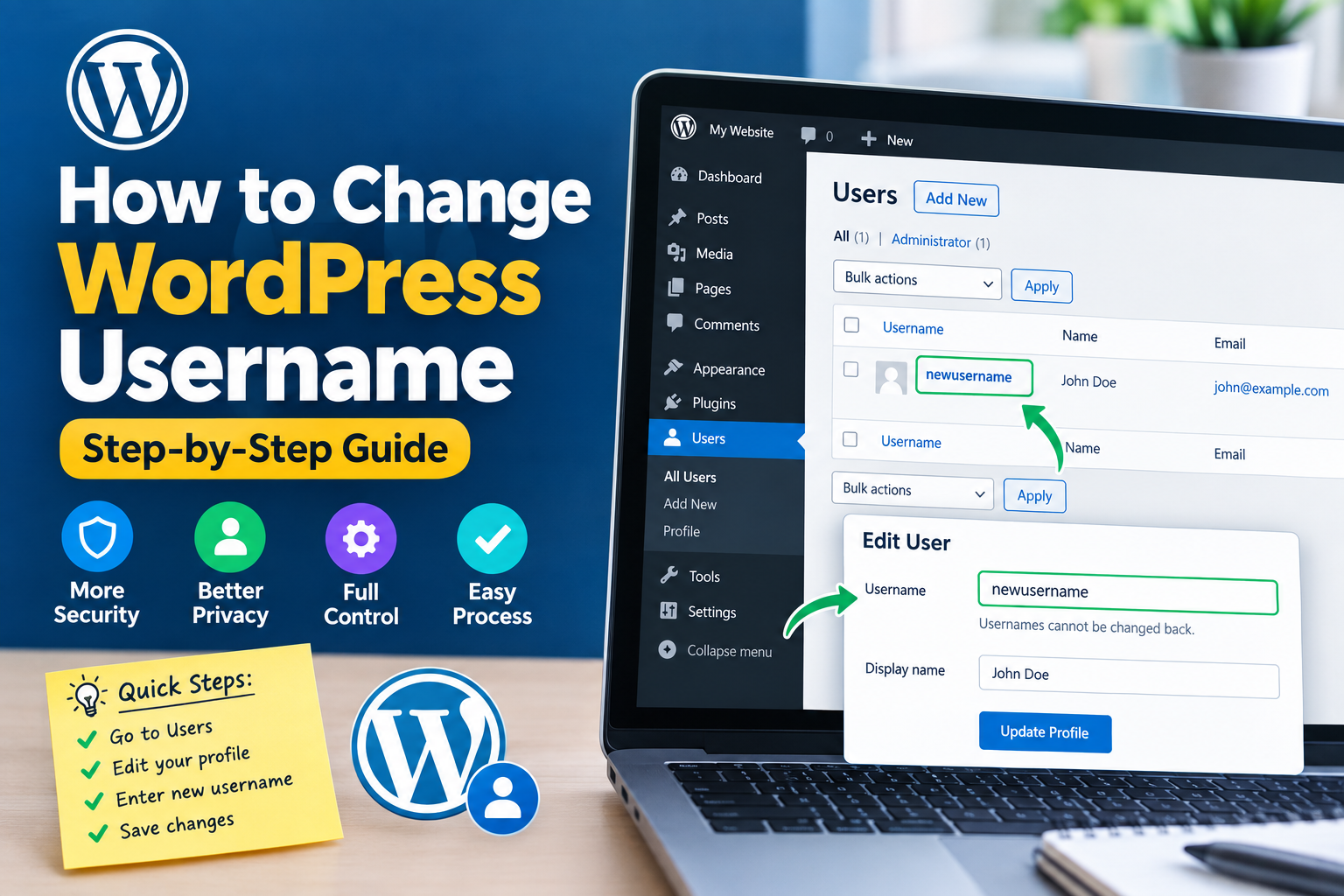
Your WordPress username is used to identify your account when you log in to your website. You may want to change it if you are using a generic username such as “admin,” have taken over an existing website, or want to improve your account security.
However, there is an important detail to understand. WordPress does not normally provide a simple option to edit an existing username from the user profile screen. Instead, the safest approach is usually to create a new user with the desired username and then remove the old account.
In this guide, we explain how to change WordPress username safely without losing your website content.
Can You Change a WordPress Username Directly?
WordPress does not normally allow you to edit the username of an existing account from the standard dashboard.
When you open your profile, you may notice that the Username field cannot be edited. This is a WordPress core limitation rather than a problem with your website.
If you need to change your WordPress login name, the recommended approach is to create a new user account and transfer your existing content to it.
Method 1: Create a New WordPress User
The easiest method is to create a new account with the username you want.
Step 1: Log In as an Administrator
First, log in to your WordPress dashboard using an account with administrator permissions.
You need administrator access to create another administrator account and manage existing users.
Step 2: Open the Users Section
From the WordPress dashboard, go to Users and select Add New User.
You will see a form where you can enter the details for the new account.
Step 3: Enter the New Username
Enter your preferred username in the Username field.
Choose a username that is unique and easy for you to remember. Avoid using simple usernames such as “admin” because predictable usernames can make targeted login attacks easier.
Add a strong password and enter the email address associated with the new account.
Step 4: Select the Administrator Role
If you need the new account to have full website management permissions, select Administrator from the Role dropdown.
Be careful when assigning the Administrator role. Administrator accounts have extensive control over WordPress websites, including plugins, themes, settings, and users.
After checking the details, click Add New User.
Step 5: Log In With the New Account
Log out of your current WordPress account and log in using the new username.
Check the dashboard to make sure you have access to the features you normally use.
It is important to test the new account before deleting your old user.
Step 6: Delete the Old Username
Once you have confirmed that the new account works correctly, go back to Users > All Users.
Find your old account and select Delete.
WordPress may ask what should happen to the content created by the old user. You can choose to attribute the existing content to your new account.
This option is important if the old account has published blog posts or pages that you want to keep.
Method 2: Change the Username Using a Plugin
Another option is to use a reputable WordPress plugin that provides username-changing functionality.
After installing a suitable plugin, follow its instructions to change the username. Plugin interfaces can vary, so always check the plugin’s documentation before making changes.
Before using any plugin for account management, make sure it is trustworthy, maintained, and compatible with your WordPress version.
Should You Change the Username in the Database?
Advanced users can modify WordPress user information directly through the website database.
However, this method is not recommended for beginners. A mistake in the database can cause login problems or other website issues.
If you choose this approach, create a complete backup first and make sure you understand the relevant WordPress database tables.
For most website owners, creating a new user is a safer and simpler solution.
Why Replace the Default “Admin” Username?
If your website still uses a generic username such as “admin,” replacing it can be a useful security improvement.
Attackers often target common usernames when attempting automated login attacks. Using a unique username adds another layer of protection.
You should also use a strong, unique password and enable two-factor authentication when your WordPress security setup supports it.
Final Thoughts
Learning how to change WordPress username is straightforward once you understand that WordPress does not normally allow the existing username to be edited directly.
The safest solution for most users is to create a new account with the desired username, give it the appropriate role, transfer your content, and then remove the old account.
Always test the new account before deleting the old one. Creating a backup before making account changes is also a smart precaution.