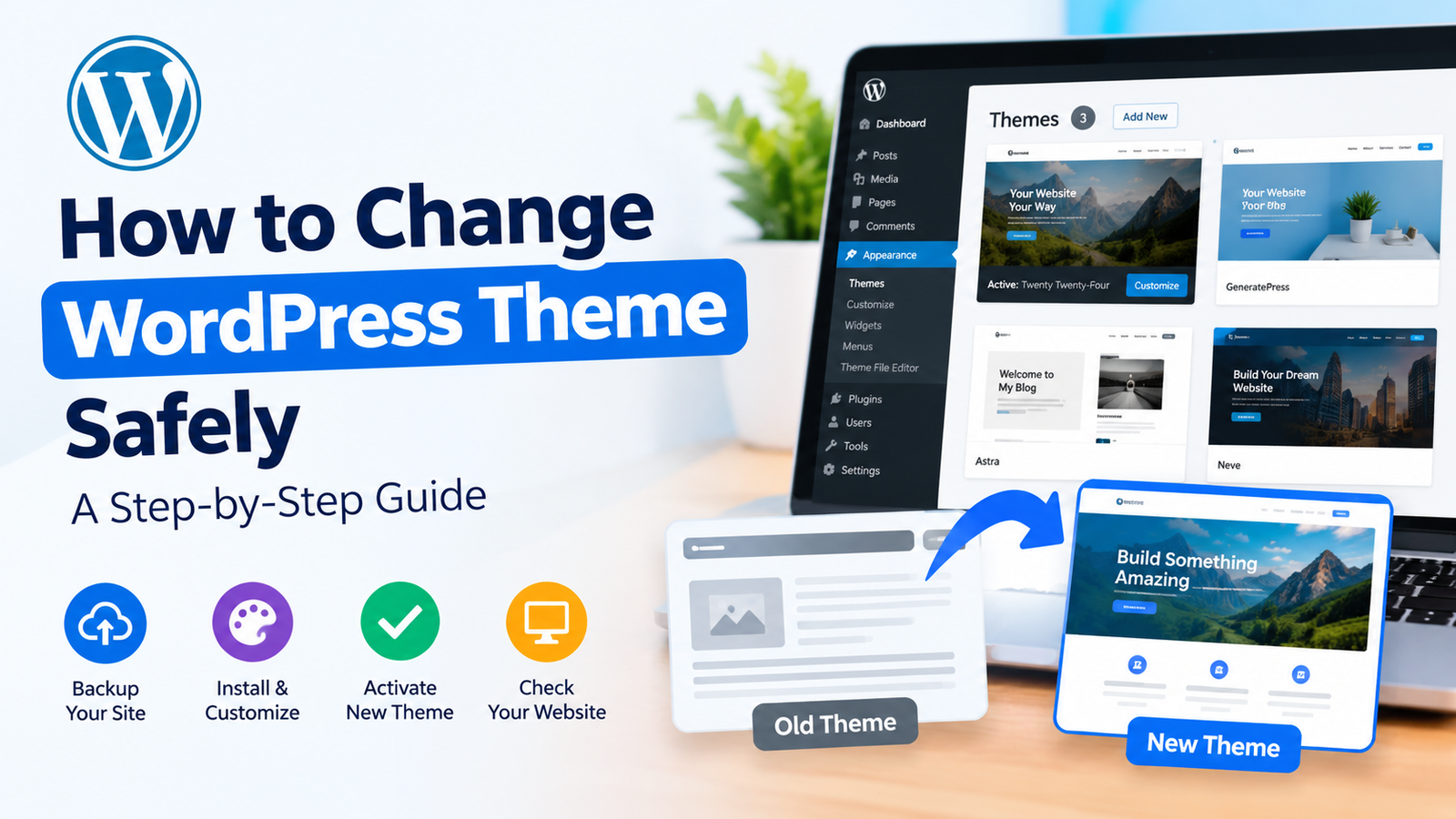
Changing your WordPress theme is a simple way to give your website a fresh and professional look. A new theme can improve your layout, navigation, colors, fonts, and overall user experience. However, you should change your theme carefully to avoid losing important settings or breaking parts of your website.
If you are wondering how to change WordPress theme, this guide will show you the complete process step by step. You do not need advanced technical skills. With a proper backup and a few checks, you can change your theme safely.
1. Back Up Your WordPress Website
Before changing your theme, create a complete backup of your website. This is one of the most important steps because your current theme may contain custom settings or code that you may need later.
Your backup should include your WordPress files and database. You can use your hosting backup feature or a trusted WordPress backup plugin.
A backup gives you a safe way to restore your website if something goes wrong after the theme change.
2. Choose a New WordPress Theme
Next, choose the theme you want to use on your website. WordPress provides many free and premium themes for blogs, business websites, online stores, portfolios, and other types of websites.
When selecting a theme, consider its speed, mobile responsiveness, customization options, and compatibility with your plugins.
Also, make sure the theme receives regular updates. An outdated theme may cause security and compatibility problems.
3. Install the New Theme
After choosing a theme, log in to your WordPress dashboard.
Go to Appearance > Themes. Then click Add New Theme. You can browse the available themes or search for a specific theme by name.
Once you find the theme you want, click Install. WordPress will download and install the theme on your website.
If you purchased a premium theme, you may need to upload its ZIP file manually. Click the option to upload a theme, select the ZIP file, and complete the installation.
4. Preview the New Theme
You do not always need to activate a theme immediately. WordPress allows you to preview some themes before making them active.
Use the preview option to check how your website may look with the new design. Look at important pages, menus, widgets, images, and other elements.
This step helps you identify design problems before visitors see the new theme.
5. Activate the New WordPress Theme
Once you are satisfied with the preview, activate the new theme.
Go to Appearance > Themes, find your newly installed theme, and click Activate.
Your new theme will now become the active design for your website. However, some settings from your previous theme may not transfer automatically.
Therefore, check your website carefully after activation.
6. Customize the New Theme
After activation, open the theme customization options. Depending on the theme, you may see Appearance > Customize or a Site Editor option.
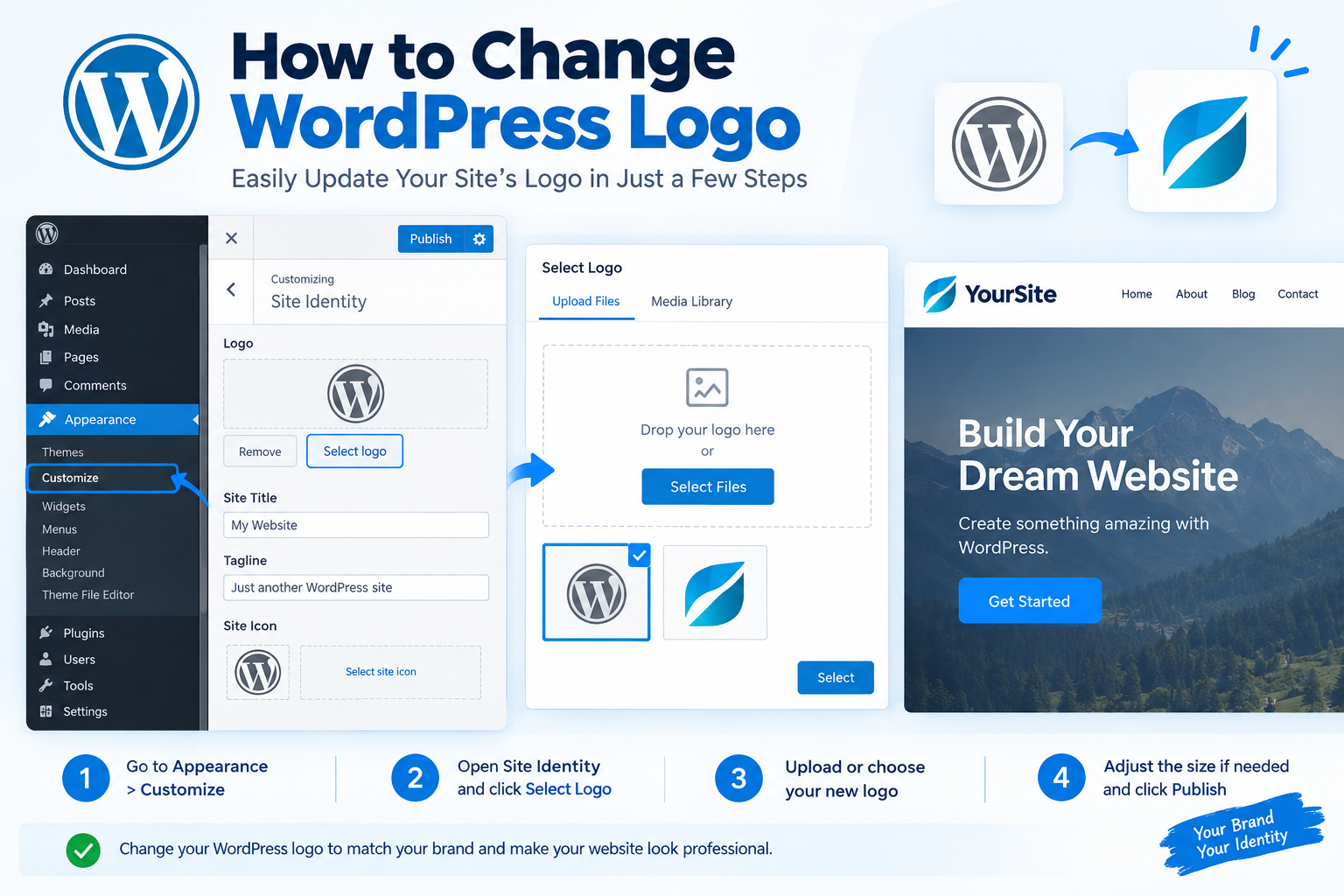
Here, you can adjust your logo, colors, fonts, menus, header, footer, homepage, and other design elements.
If you want to switch your WordPress design, take some time to make the new theme match your brand and content.
Do not make too many changes at once. Instead, update one section at a time and preview the results.
7. Check Your Website After Changing the Theme
Now visit your website from the front end. Check your homepage and important pages carefully.
Test your navigation menus, contact forms, images, buttons, sidebars, and footer links. Also, check your website on both desktop and mobile devices.
Some plugins may display differently with a new theme. If you notice a problem, check the theme settings and plugin compatibility.
8. Check Your Widgets and Menus
Theme changes can affect widget areas and menus. Your old theme may have had different sidebar or footer locations.
Go to Appearance > Widgets or the relevant Site Editor section and make sure your widgets are placed correctly.
Then check your navigation menus. Make sure important links are still available and point to the correct pages.
9. Test Website Speed and SEO
After changing your theme, test your website speed. A theme with unnecessary features or large files can affect loading performance.
You should also check your SEO settings. Make sure your page titles, meta descriptions, headings, images, and important links are still working correctly.
If your previous theme contained custom code related to SEO, analytics, or other features, make sure those functions are still available.
10. Remove the Old Theme Later
Do not immediately delete your old theme after activating the new one. First, make sure everything works correctly.
Keep the old theme temporarily while you test the new design. Once you are confident that your website is working properly and you no longer need the old theme, you can remove it.
Go to Appearance > Themes, select the inactive theme, and use the delete option.
Conclusion
Learning how to change WordPress theme is easy when you follow the correct steps. Start by creating a complete backup, choose a reliable theme, install and preview it, and then activate it.
Afterward, customize the design and carefully check your pages, menus, widgets, forms, mobile layout, speed, and SEO settings. Taking these extra steps can help you avoid common problems and keep your website running smoothly.
A careful theme change can give your WordPress website a modern appearance without affecting your important content.