Introduction
Large videos, downloads, archives, and old installers can quietly consume a lot of disk space. Windows 11 offers several ways to locate them. Start with built-in tools so you can review what is taking up space before deciding whether to delete, move, or keep it.
Review the Storage settings
Open Settings > System > Storage. Windows groups disk use into categories such as installed apps, temporary files, documents, and other files. Select a category to investigate it. This overview is useful when you do not know whether apps, downloads, or personal files are the main cause.
Sort files in File Explorer
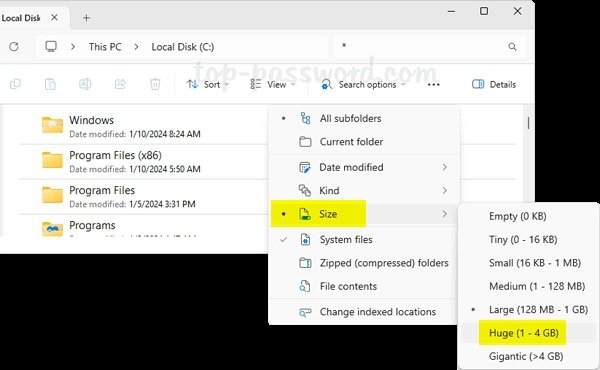
Open File Explorer and navigate to a folder such as Downloads, Videos, or Documents. Switch to Details view, right-click a column heading if needed, and enable Size where available. Select the Size column to sort files. This makes large items easier to spot, although folder sizes may not be shown in the same way as file sizes.
Search for file types
Use File Explorer’s search box to find particular types of files, such as videos or archives. You can search for extensions like .mp4, .zip, or .iso, then review the results and their sizes. Search syntax and available filters can vary, so use the search tools shown in your version of Windows if a query does not work.
Decide what to do with large files
Delete duplicate downloads or files you no longer need. Move personal videos and photo archives to an external drive if you need to keep them. Before removing installers, check whether you might need them again. Never delete a file just because its name looks unfamiliar, especially inside Windows or Program Files folders.
Check cloud and backup folders
Cloud services may keep local copies of files on your PC. Review the service’s settings before removing anything, because deleting a synced file can also delete it from the cloud. Use the service’s built-in option to free local space when available, and verify that important files are backed up.
Conclusion
Use Storage settings to see the big picture, then sort personal folders by size to locate large items. Review each file before removing it, and back up important content. This approach helps reclaim space without accidentally damaging Windows.