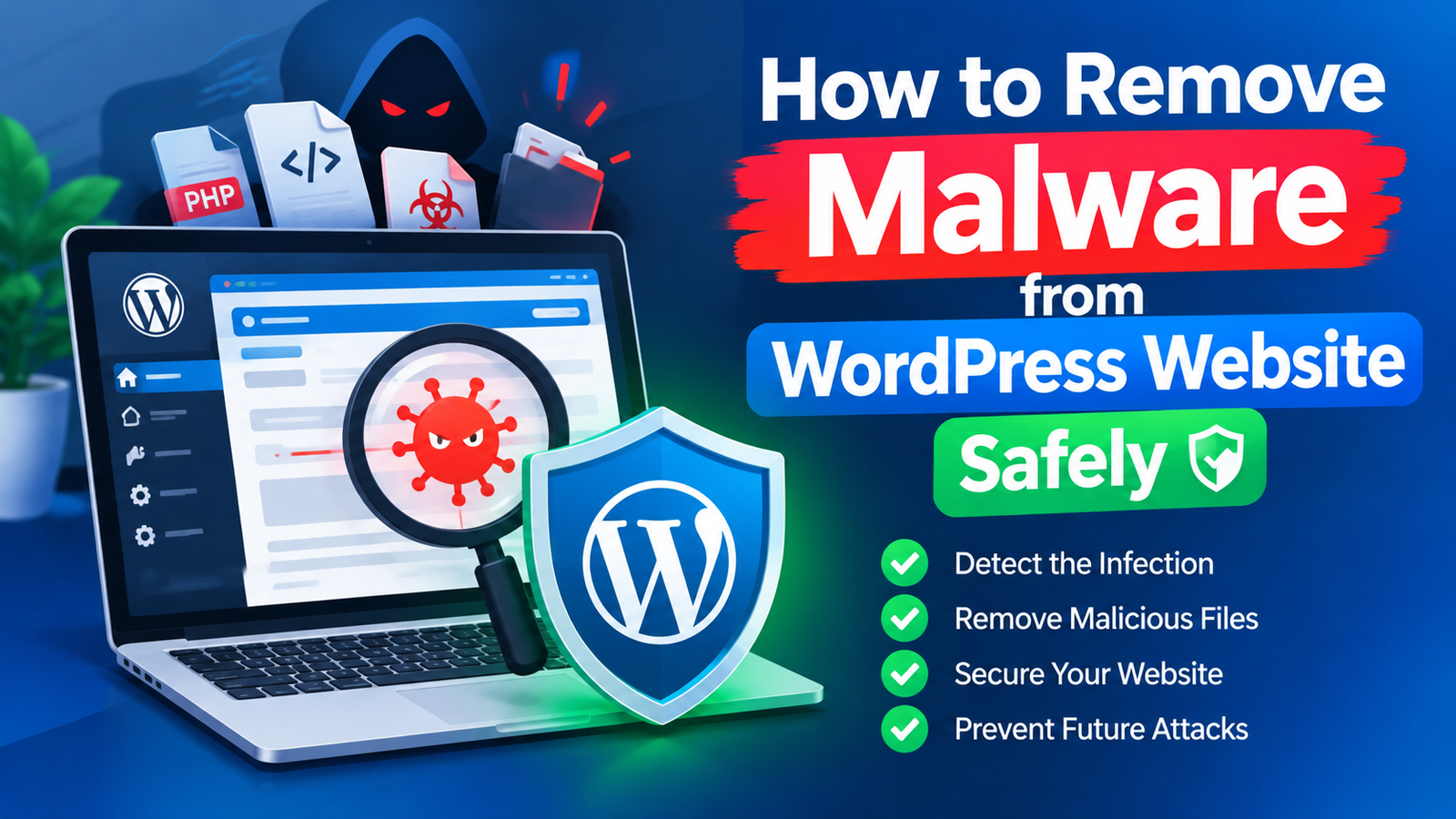
A malware infection can cause serious problems for a WordPress website. Your site may redirect visitors to unwanted pages, display strange content, send spam, or show security warnings in search results. If you notice unusual activity, learning how to remove malware from WordPress website should be a priority.
The good news is that many WordPress malware infections can be cleaned with the right process. In this guide, you will learn how to identify malware, clean infected files, secure your website, and reduce the risk of another attack.
1. Confirm That Your Website Has Malware
Before removing anything, make sure your website is actually infected. Common warning signs include unexpected redirects, unknown administrator accounts, strange pop-ups, modified website content, slow performance, or files that you did not create.
Your hosting provider or a reputable security scanner may also detect suspicious files.
If Google displays a security warning for your website, take it seriously. Malware can affect both your visitors and your website’s reputation.
2. Create a Complete Backup
Before cleaning your website, create a backup of your WordPress files and database.
A backup gives you a recovery option if you accidentally delete an important file during the cleaning process. Save the backup somewhere separate from your hosting account if possible.
However, do not assume that every backup is clean. If the malware was present when the backup was created, restoring that backup could bring the infection back.
3. Put the Website in Maintenance Mode
If your website is heavily infected, temporarily placing it in maintenance mode can help reduce the impact on visitors.
This gives you time to investigate and clean the installation without visitors interacting with potentially compromised pages.
If your website handles customer accounts, forms, or other sensitive information, consider temporarily limiting access while you investigate the infection.
4. Scan WordPress Files
A security scanner can help identify suspicious files and changes.
Security plugins can scan WordPress core files, themes, plugins, and other areas of your installation. Review scan results carefully before deleting anything.
Do not automatically remove every file that a scanner marks as suspicious. Some security tools can produce false positives, and deleting legitimate files may break your website.
Look for unfamiliar PHP files, suspicious code, recently modified files, and files located in unusual directories.
5. Remove Malicious Files
Once you identify confirmed malicious files, remove them carefully.
If the malware has modified WordPress core files, one reliable approach is to replace the core WordPress files with fresh copies from the official WordPress release.
Do not replace your wp-content folder blindly because it contains your themes, plugins, and uploaded media.
Pay special attention to unfamiliar plugins and themes. Remove software that you do not recognize or no longer need.
6. Check the WordPress Database
Malware does not always stay inside website files. Attackers can sometimes insert malicious content into the WordPress database.
Check your posts, pages, widgets, options, and other database areas for unfamiliar scripts, links, redirects, or administrator accounts.
If you are not comfortable working directly with a database, use a trusted malware-removal service or ask your hosting provider for assistance.
7. Change All Important Passwords
After cleaning the website, change passwords for every account that could have been compromised.
This includes your WordPress administrator account, hosting account, FTP or SFTP account, database account, and related email accounts.
Use strong, unique passwords for each service. If your hosting provider supports two-factor authentication, enable it for additional protection.
8. Update WordPress, Themes, and Plugins
Outdated software is one of the common reasons WordPress websites become vulnerable.
Update WordPress, themes, and plugins to their latest compatible versions after cleaning the website. Remove inactive themes and plugins that you do not use.
Only download WordPress themes and plugins from trusted sources. Avoid pirated or modified software because it can contain hidden malicious code.
For additional information, follow a reliable WordPress malware protection guide to improve your website’s overall security.
9. Check Google Search Console
If your website was hacked or contained harmful content, check Google Search Console after cleaning it.
Look for security issues, indexing problems, and unusual pages. If Google has placed a security warning on your website, you may need to request a review after confirming that the malware has been removed.
Do not request a review until the website is properly cleaned. If Google detects malware again, the warning may remain.
10. Prevent Future Malware Infections
Cleaning malware is only the first step. You should also improve your website’s security to reduce future risks.
Keep WordPress and all plugins updated. Use strong passwords and two-factor authentication. Install a reputable security plugin, maintain regular backups, and use secure hosting.
You should also limit administrator access. Give users only the permissions they actually need.
Regularly scan your website for suspicious changes and remove unused plugins and themes.
Final Thoughts
Learning how to remove malware from WordPress website can help you recover a compromised website and protect your visitors. Start by identifying the infection, creating a backup, scanning your files, removing malicious code, checking the database, and changing compromised passwords.
After cleaning the website, update all software and strengthen your security settings. Regular backups and security monitoring can also make future recovery much easier.
If the infection is severe or you are unsure which files are safe to remove, consider getting professional malware-removal assistance. Removing the wrong files can damage your website, so careful cleanup is always better than rushing the process.