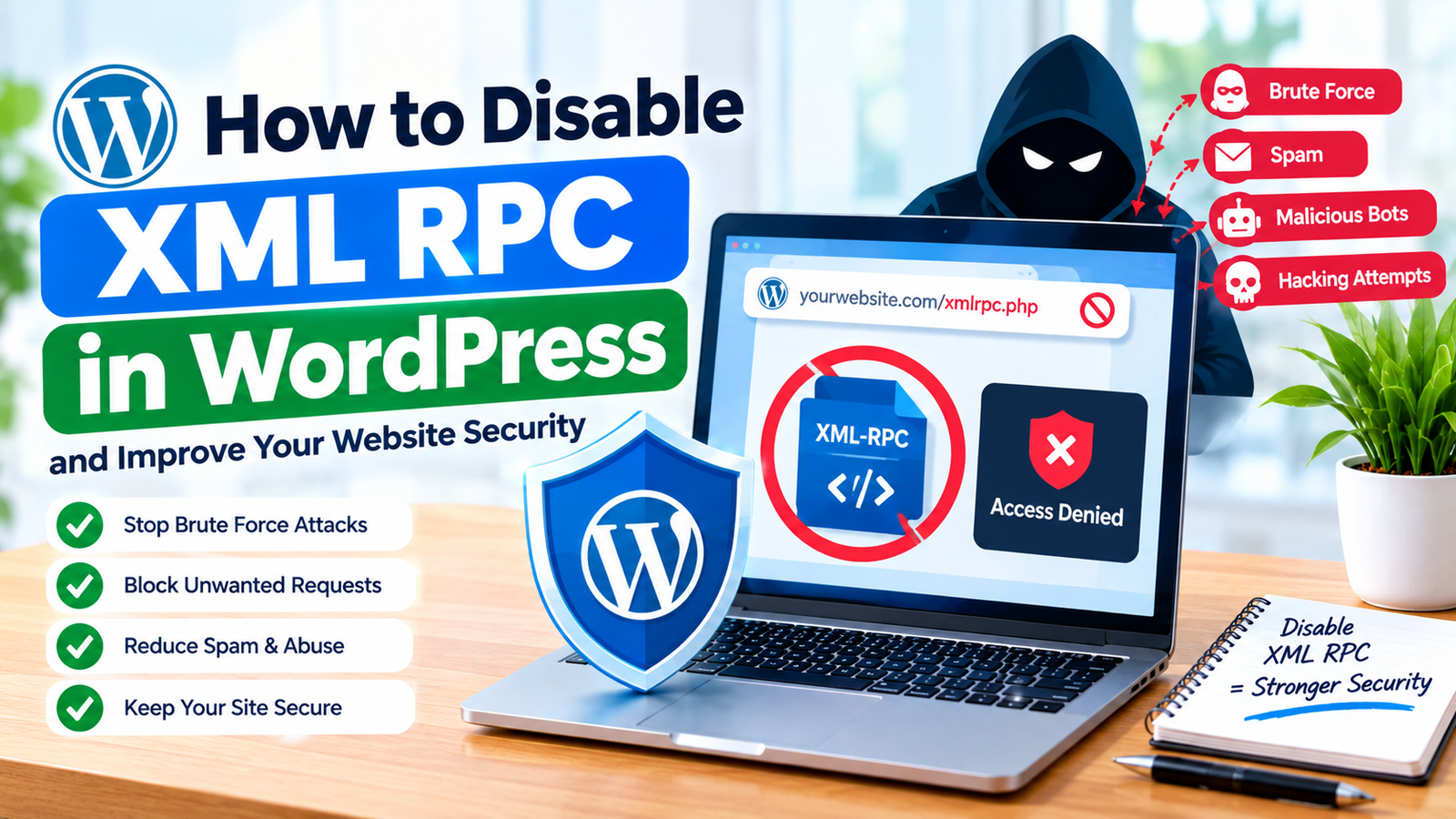
XML-RPC is a WordPress feature that allows external applications to communicate with your website. It was created to make remote connections and certain publishing functions possible. However, many modern WordPress websites do not need XML-RPC.
If you do not use features that depend on XML-RPC, disabling it can help reduce unwanted requests and improve your website’s security. XML-RPC has also been used by attackers for brute-force attempts, spam, and other types of unwanted traffic.
Learning how to disable XML RPC in WordPress is relatively simple. You can use a security plugin, a small code snippet, or server-level configuration.
What Is XML-RPC in WordPress?
XML-RPC is a communication system built into WordPress. It allows external applications and services to interact with your website without using the normal WordPress dashboard.
The feature is available through a file called xmlrpc.php, which is normally located in the root directory of a WordPress installation.
Some older applications and services may still depend on XML-RPC. Therefore, you should check whether your website needs it before disabling the feature.
If you only manage your website through the WordPress dashboard, you may not need XML-RPC.
Why Disable XML-RPC?
One reason website owners disable XML-RPC is to reduce unnecessary requests.
Attackers can use XML-RPC-related functionality to send repeated authentication requests. It may also be targeted for pingbacks and other unwanted activity.
Disabling XML-RPC can reduce this type of traffic when the feature is not required.
However, disabling XML-RPC is not a complete security solution. You should still use strong passwords, limit login attempts, enable two-factor authentication, keep WordPress updated, and maintain regular backups.
Method 1: Use a WordPress Security Plugin
The easiest option for beginners is to use a reputable WordPress security plugin.
First, log in to your WordPress dashboard.
Go to Plugins and select Add New Plugin. Search for a trusted security plugin that includes XML-RPC protection or disabling options.
Install the plugin and activate it.
Open the plugin’s security settings and look for an option such as Disable XML-RPC, XML-RPC Protection, or Block XML-RPC Requests.
Enable the appropriate option and save your changes.
The exact location and name of the setting can vary depending on the plugin.
This method is useful because you can manage the setting from the WordPress dashboard without editing website files manually.
Method 2: Disable XML-RPC With Code
Advanced WordPress users can disable XML-RPC with a code snippet.
A common approach is to use the xmlrpc_enabled filter in WordPress.
The code can be added through a suitable custom functionality method or a site-specific plugin.
Before adding code, create a backup of your website. Incorrect code can cause errors or unexpected behavior.
You should also avoid editing theme files directly if you are not comfortable with WordPress development. A theme update could remove your changes.
If you use this method, verify that your website continues to work normally after making the change.
Method 3: Block XML-RPC at the Server Level
Another option is to block access to xmlrpc.php at the server level.
Depending on your hosting environment, you may be able to use server configuration rules to prevent requests from reaching the XML-RPC file.
This method can be effective because unwanted requests are blocked before WordPress processes them.
However, server configuration is more technical than using a plugin. If you are unsure about editing server files, check your hosting provider’s documentation or ask their support team for assistance.
Check Whether XML-RPC Is Disabled
After disabling XML-RPC, you should confirm that the change works correctly.
You can use a trusted XML-RPC testing tool to check whether your website responds to XML-RPC requests.
Another option is to review your security plugin’s logs. Some security plugins show blocked requests and security events.
Do not make repeated test requests if you are unsure about their effect. A simple confirmation that the feature is blocked is usually enough.
Check Your Website Features
Before disabling XML-RPC permanently, make sure your website does not depend on it.
Some third-party applications, older mobile applications, publishing tools, or integrations may require XML-RPC.
If you use an external service to publish content to WordPress, check its documentation first.
If an important integration stops working after you disable XML-RPC, you may need to re-enable the feature or use another authentication method supported by the service.
Keep WordPress Secure
Disabling XML-RPC should be considered one part of your overall security strategy.
Use a strong and unique administrator password. Limit failed login attempts to slow down automated attacks.
Two-factor authentication can provide another layer of protection for administrator accounts.
You should also update WordPress core, themes, and plugins regularly. Remove unused plugins and themes because outdated software can create additional security risks.
Regular backups are equally important. If something goes wrong, a recent backup can help you restore your website.
Final Thoughts
Learning how to disable XML RPC in WordPress can help reduce unnecessary requests and improve security when your website does not need XML-RPC functionality.
For beginners, a reputable security plugin is usually the simplest option. Advanced users can consider code-based or server-level methods, but they should always create a backup before making technical changes.
Before disabling XML-RPC, check whether any application or integration on your website depends on it. Once you confirm that it is not required, disabling the feature can be a useful part of your XML-RPC security configuration.
For stronger protection, combine this step with login attempt limits, strong passwords, two-factor authentication, software updates, firewall protection, and regular backups.