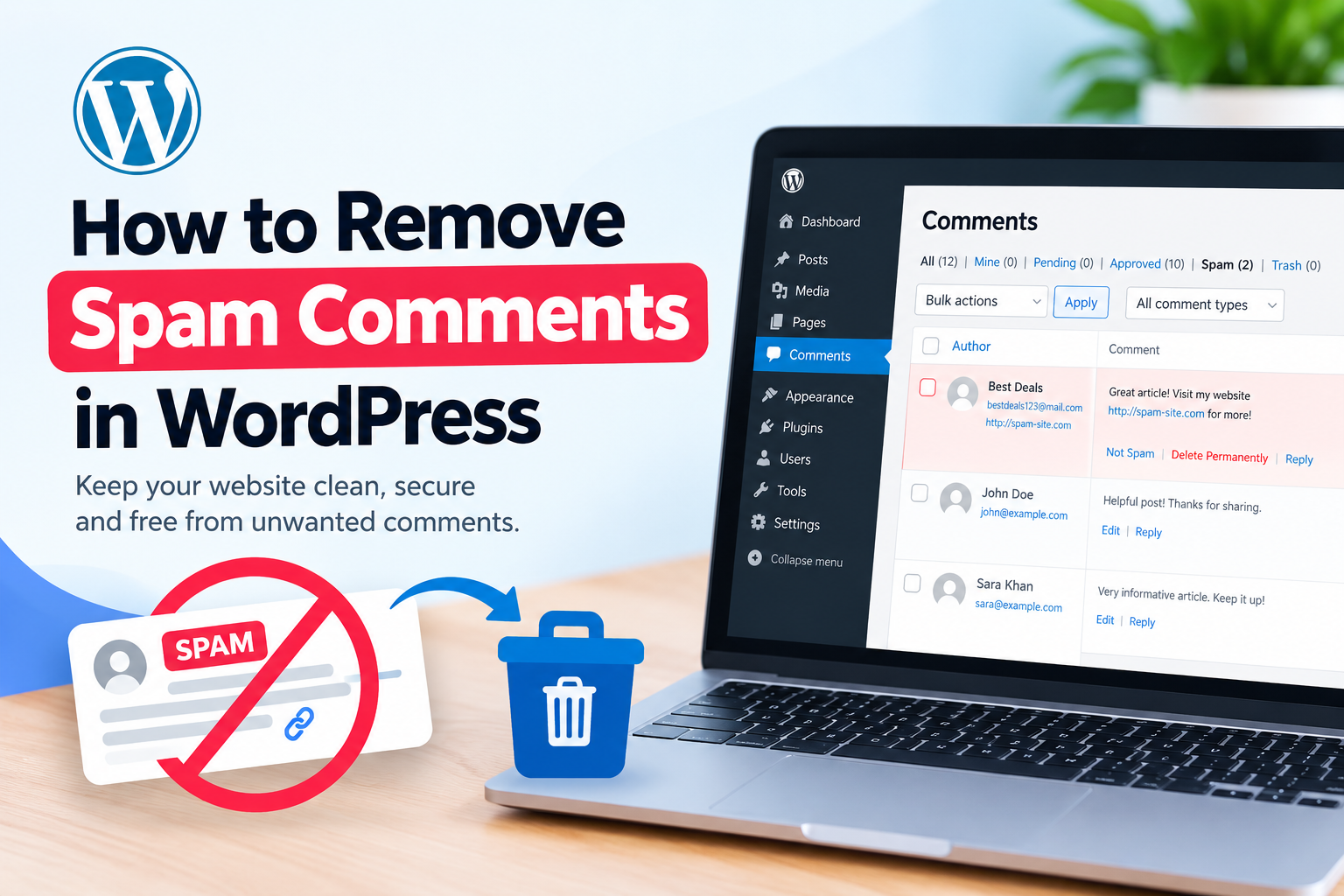
Spam comments are a common problem for WordPress website owners. They can fill your comment section with unwanted links, advertisements, fake messages, and suspicious content. Besides making your website look unprofessional, too many spam comments can make comment management difficult.
Fortunately, WordPress provides simple tools to identify, review, and delete unwanted comments. You can also change your discussion settings or use a trusted spam protection plugin to reduce future spam.
In this guide, you will learn how to remove spam comments in WordPress and how to prevent them from appearing again.
What Are Spam Comments in WordPress?
Spam comments are unwanted messages posted on your website by bots or users. They often contain promotional links, irrelevant text, or suspicious websites.
For example, you may receive comments such as “Great article, visit my website” with a link to an unrelated page. Other spam comments may contain strange usernames or repeated keywords.
If your website receives many comments, checking each one manually can take a lot of time. Therefore, using WordPress moderation and spam protection tools is helpful.
How to Remove Spam Comments in WordPress
WordPress makes it easy to remove spam comments from your dashboard. Follow these steps.
Step 1: Log In to WordPress
First, log in to your WordPress admin dashboard.
Usually, you can access the dashboard by visiting your website’s WordPress login page. Enter your username and password, then click the login button.
After logging in, you will see the WordPress dashboard.
Step 2: Open the Comments Section
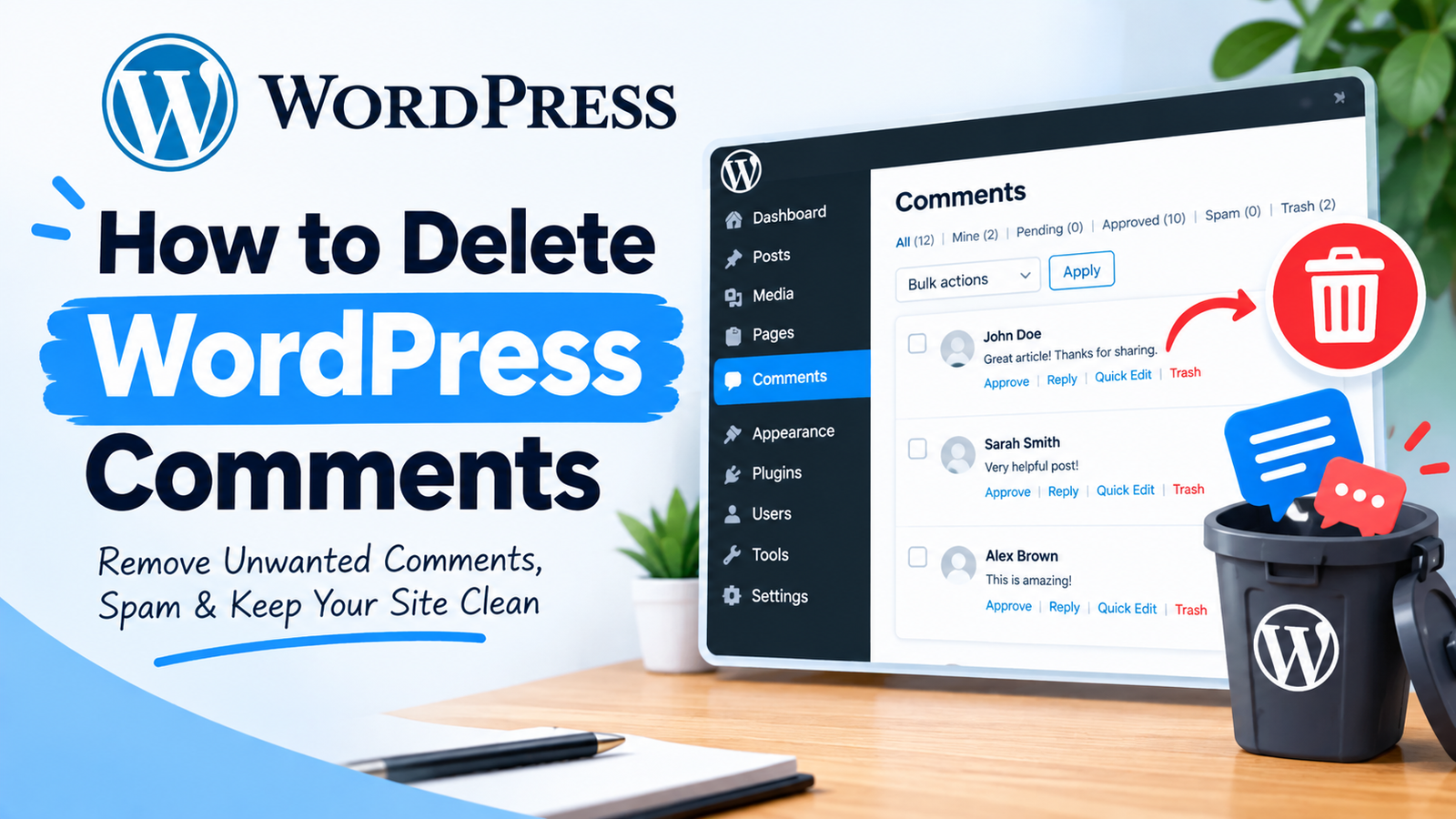
From the left-hand menu, click Comments.
WordPress will show all comments submitted to your website. Depending on your settings, you may see approved, pending, spam, and trash comments.
Look for comments that appear suspicious or unrelated to your content.
Step 3: Mark Unwanted Comments as Spam
If you find a spam comment, select it and click Spam.
WordPress will move the comment to the Spam section. This helps separate unwanted comments from genuine comments.
You can repeat this process for multiple comments. If you have many spam comments, use the bulk action option to process several comments together.
Step 4: Permanently Delete Spam Comments
After marking comments as spam, click the Spam tab.
Here, you can review comments that WordPress has identified as spam. If you are sure a comment is unwanted, select it and click Delete Permanently.
Be careful when deleting comments because permanently deleted comments cannot normally be restored through the WordPress dashboard.
How to Delete Multiple Spam Comments
If your website has hundreds of spam comments, deleting them one at a time can be frustrating.
Instead, open Comments > Spam and select multiple comments. Then choose the appropriate bulk action.
You can also use the Empty Spam option when you want to permanently remove all comments currently stored as spam.
Before using this option, check the spam folder carefully. Sometimes a legitimate comment can accidentally be marked as spam.
How to Prevent Spam Comments in WordPress
Removing spam comments solves the immediate problem, but prevention is even more useful.
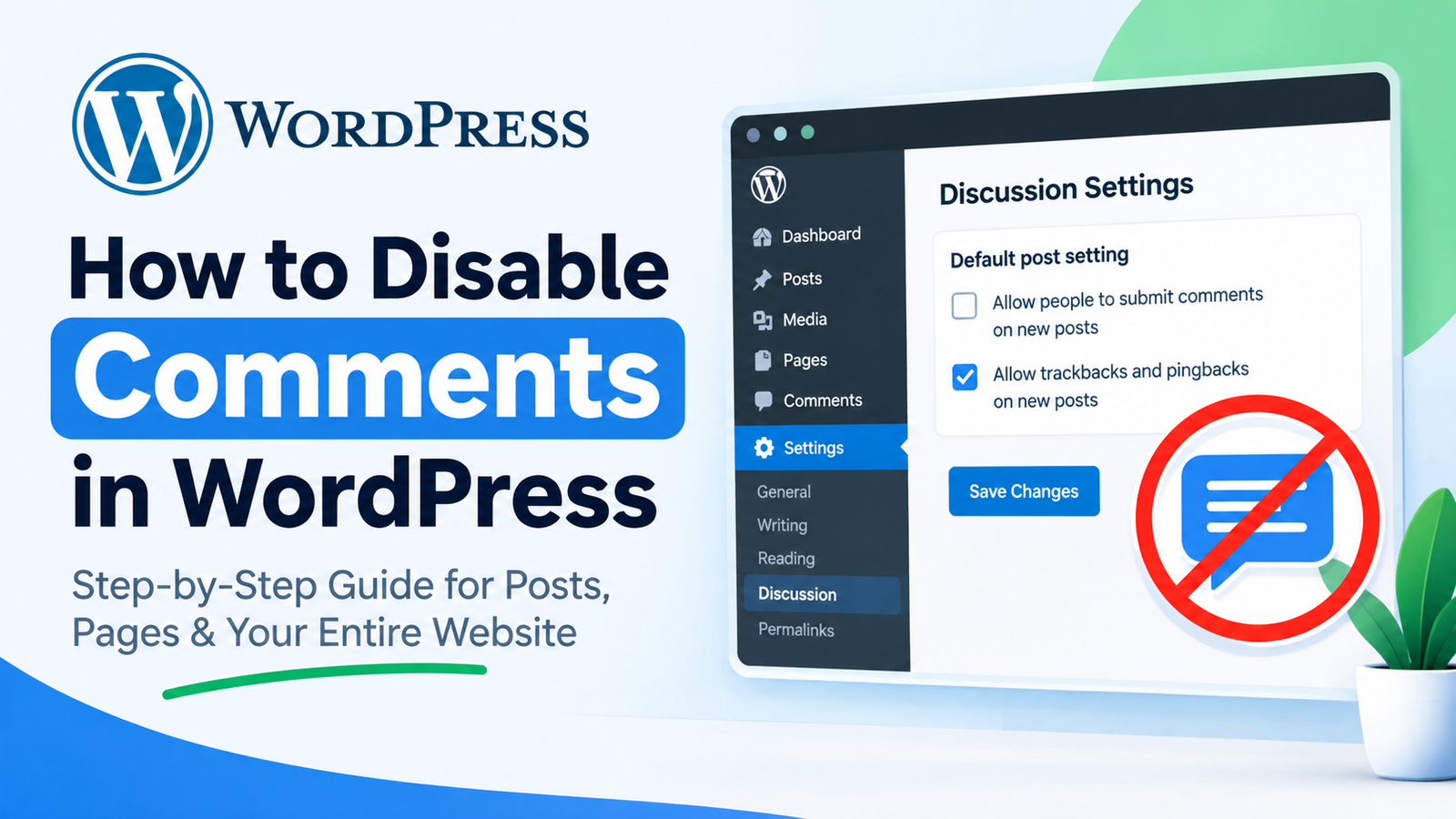
Go to Settings > Discussion in your WordPress dashboard. Here, you can control how comments work on your website.
For example, you can require users to enter their name and email before commenting. You can also choose whether comments require manual approval before appearing publicly.
These settings can reduce unwanted comments and give you more control over your comment section.
Use a Spam Protection Plugin
If your website receives a large amount of spam, consider using a reputable WordPress spam protection plugin.
A plugin can automatically detect suspicious comments and move them to the spam folder. This reduces the amount of manual work required to manage comments.
However, always check the plugin’s reputation, compatibility, updates, and settings before installing it.
You should also avoid installing unnecessary plugins because too many plugins can make website management more complicated.
For additional protection, you can also review WordPress comment spam protection options and configure them according to your website’s needs.
Disable Comments If You Do Not Need Them
Some websites do not need comments at all. For example, a business website may prefer visitors to contact the company through a contact form instead.
If you do not need comments, you can disable them for new posts or individual pages.
Go to the relevant post or page and check its Discussion settings. Turn off the option that allows comments.
This can significantly reduce comment spam because visitors and bots will no longer have a comment form available on those pages.
Check Your Spam Folder Regularly
Even with spam protection enabled, it is a good idea to check your spam folder occasionally.
Automated filters are useful, but they may sometimes classify a genuine comment as spam. Reviewing the folder helps you recover legitimate comments before they are permanently deleted.
At the same time, regularly clearing old spam comments can keep your dashboard organized.
Final Thoughts
Learning how to remove spam comments in WordPress is important for keeping your website clean and professional. You can manually mark unwanted comments as spam, permanently delete them, or use bulk actions when dealing with many comments.
For long-term protection, review your WordPress discussion settings and consider using a reliable spam protection plugin. If comments are not useful for your website, disabling them can also prevent many unwanted messages.
By combining moderation, proper settings, and spam protection, you can keep your WordPress comment section easier to manage and more useful for genuine visitors.