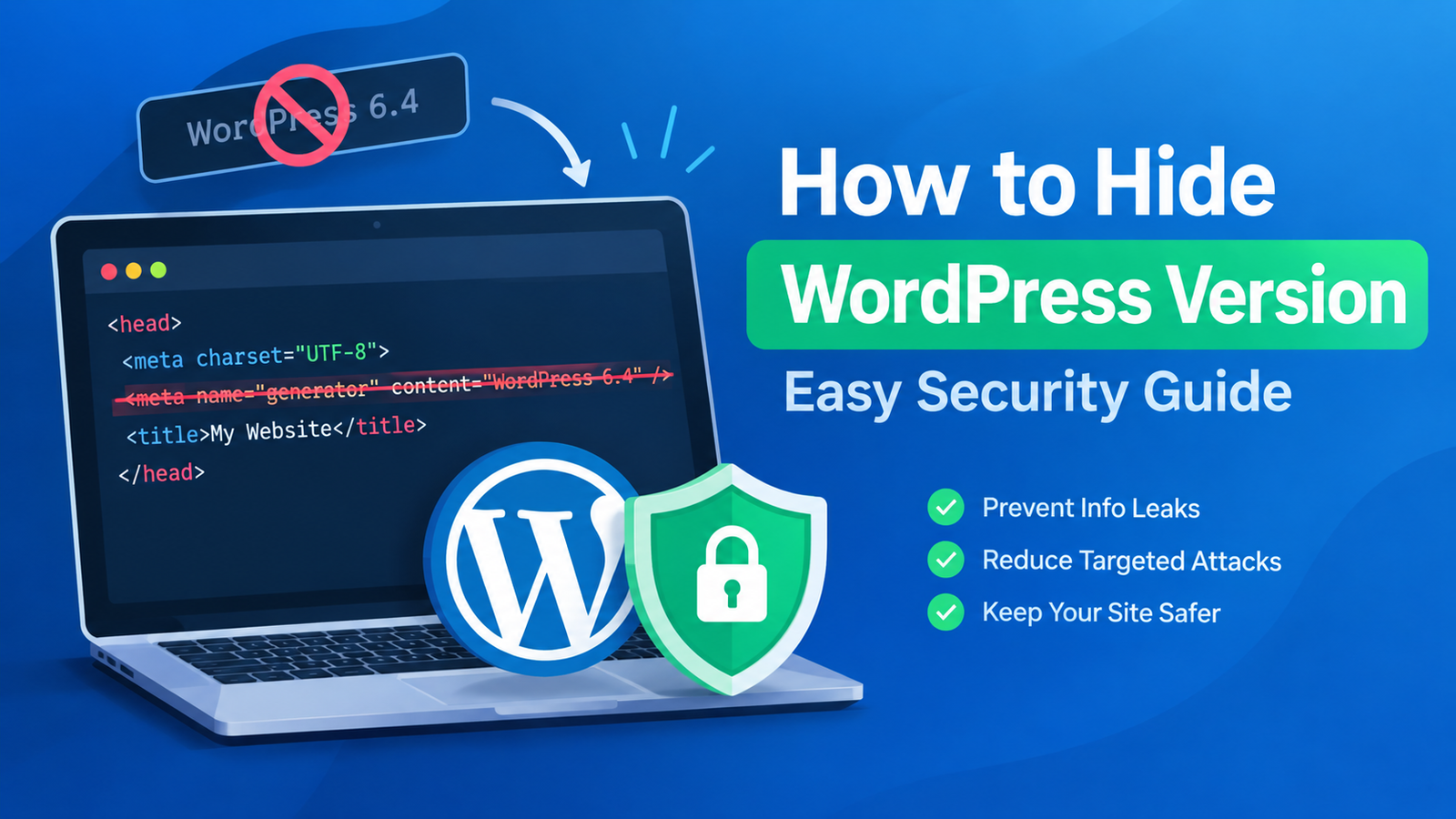
WordPress is one of the most popular website platforms in the world. Because of its popularity, WordPress websites can become targets for automated attacks. One simple security improvement is hiding the WordPress version displayed in your website’s source code.
When someone views your website source code, WordPress may show a version number through a generator meta tag. For example, it may display something like WordPress 6.x. Hiding this information does not make your website completely secure, but it can reduce unnecessary information exposed to visitors and automated scanners.
In this guide, you will learn how to hide WordPress version using simple methods.
Why Hide the WordPress Version?
WordPress regularly releases security updates and improvements. If your website publicly displays an old WordPress version, attackers may use that information to identify websites running outdated software.
Removing the version number can make basic information gathering slightly more difficult. However, hiding the version should not replace regular WordPress updates, strong passwords, backups, or other security measures.
Think of this technique as an additional security layer rather than a complete security solution.
How to Hide WordPress Version Using Code
One of the easiest methods is adding a small PHP function to your WordPress website.
Before making any changes, create a backup of your website. You should also avoid editing important WordPress core files because updates can overwrite your changes.
You can add the following code to your child theme’s functions.php file:
remove_action('wp_head', 'wp_generator');This removes the WordPress generator tag from the website header.
After saving the changes, open your website and view the page source. Search for the word generator. The WordPress version should no longer appear in the normal generator meta tag.
Use a Security Plugin
If you do not want to edit PHP files, a security plugin may provide options for reducing information exposed by your WordPress installation.
Many WordPress security plugins include features that help protect your website from common threats. Depending on the plugin, you may be able to disable unnecessary WordPress information or harden different parts of your website.
Before installing a plugin, check that it is actively maintained and compatible with your current WordPress version.
Avoid installing several plugins that perform the same security functions because unnecessary plugins can increase website complexity.
Hide WordPress Version From RSS Feeds
The WordPress version can sometimes be exposed through RSS feeds as well. If you want to remove the generator information from feeds, you can use an additional filter in your theme’s functions.php file.
For example:
function remove_wp_version() {
    return '';
}

add_filter('the_generator', 'remove_wp_version');
This removes the generator information that WordPress adds to feeds and other locations where the generator filter is used.
Always test your website after adding custom code. A small coding mistake can sometimes cause unexpected problems.
Can You Hide the Version Completely?
It is important to understand that hiding the WordPress version from the generator tag does not guarantee that the version cannot be discovered.
Security scanners can sometimes identify WordPress versions through other files, scripts, REST API responses, plugins, themes, or other website characteristics.
Therefore, the main goal should not be to make the WordPress version impossible to discover. Instead, the goal is to reduce unnecessary public information while keeping the website properly updated.
Keep WordPress Updated
Hiding your WordPress version is useful as a small security measure, but keeping WordPress updated is much more important.
Always update WordPress, themes, and plugins when stable security and maintenance updates are available. Before major updates, create a backup so you can restore your website if something goes wrong.
You should also remove inactive themes and plugins that you no longer use. Keeping your installation clean can reduce unnecessary security risks.
For more useful WordPress security best practices, focus on strong administrator passwords, two-factor authentication, regular backups, secure hosting, and reliable security monitoring.
Check Whether the Version Is Hidden
After applying your changes, you can check your website manually.
Open your website in a browser and use the option to view the page source. Press Ctrl + F and search for:
generator
If the WordPress generator meta tag has been successfully removed, you should not see the usual WordPress version information in that tag.
You can also check your website with a reputable security scanner to identify other publicly exposed information.
Final Thoughts
Learning how to hide WordPress version is a simple way to reduce unnecessary information in your website’s source code. You can remove the standard generator tag with a small PHP snippet or use a suitable security plugin if you prefer a simpler approach.
However, this technique should only be considered an additional security measure. Keep WordPress, plugins, and themes updated, use strong login credentials, maintain regular backups, and follow other security practices.
A secure WordPress website depends on multiple layers of protection, not just hiding the version number.