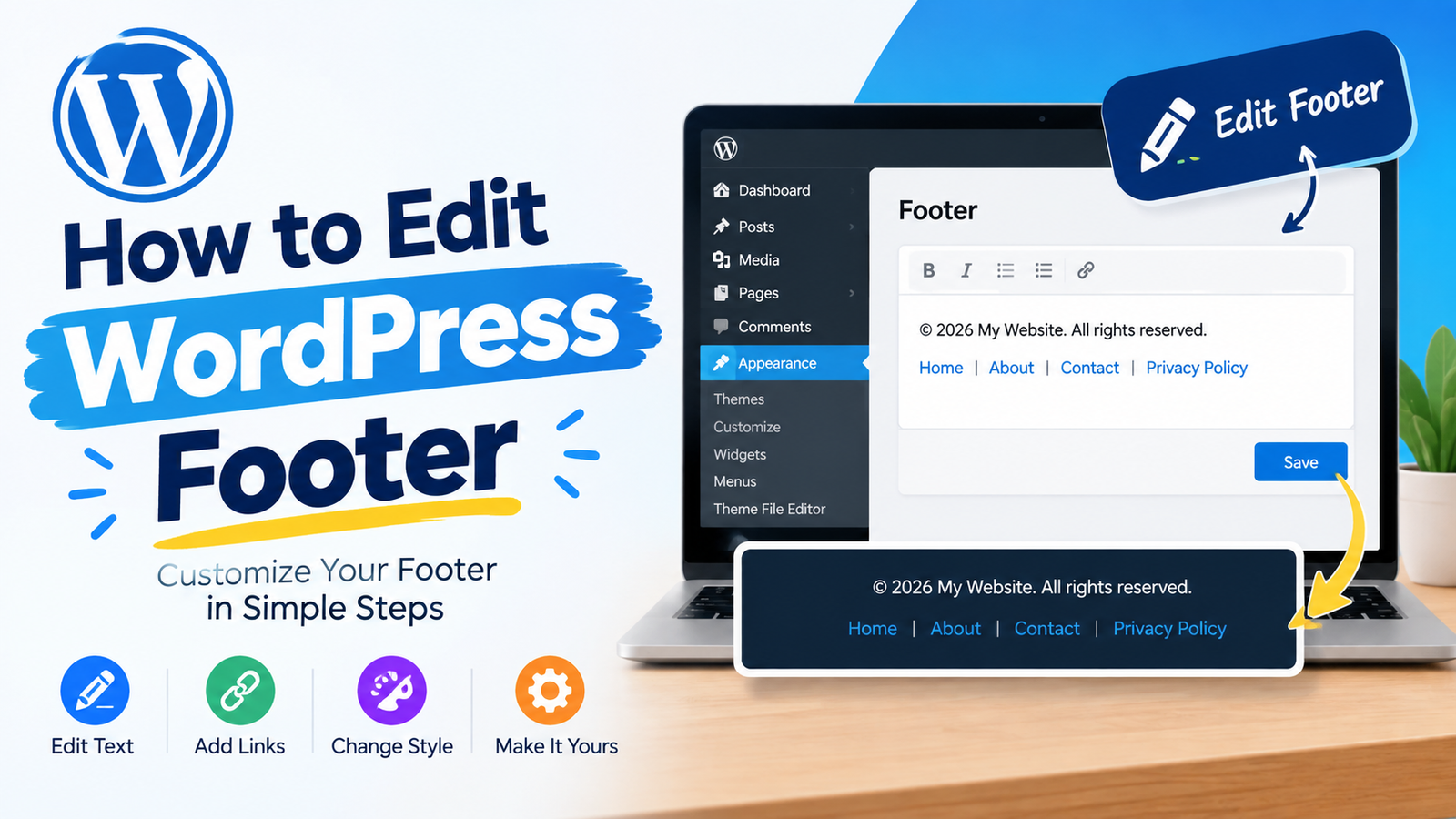
The footer is one of the most important parts of a WordPress website. It appears at the bottom of your pages and usually contains useful information such as copyright text, navigation links, contact details, social media links, and privacy policy links.
If you want to make your website look more professional, you may need to edit the footer. Fortunately, WordPress provides several ways to customize it without changing complicated files.
In this guide, you will learn how to edit WordPress footer using simple methods. The exact steps may vary depending on your WordPress theme.
What Is the WordPress Footer?
The footer is the section displayed at the bottom of a WordPress website. It is usually visible across multiple pages.
A typical footer may contain:
- Copyright information
- Privacy Policy link
- Terms and Conditions link
- Contact information
- Social media links
- Navigation menus
- Widgets
- Business information
A well-designed footer helps visitors find important information quickly.
Why Should You Edit the WordPress Footer?
The default footer provided by your theme may not match your website’s needs. It may contain unnecessary text, outdated copyright information, or links you do not want to display.
Editing the footer allows you to make it more useful and professional.
For example, you can add your business name, update the copyright year, create a footer menu, add social links, or remove unnecessary content.
Method 1: Edit Footer Using the WordPress Site Editor
If you are using a block theme, you can often edit the footer directly through the Site Editor.
First, log in to your WordPress dashboard.
Go to Appearance > Editor.
The Site Editor will open. Look for Patterns or Template Parts, depending on your WordPress version and theme.
Find the Footer section and open it.
You can now click different blocks inside the footer and edit their content.
You can add or remove blocks, change text, create links, and adjust the layout.
When you finish making changes, click Save.
Your updated footer should now appear on the website.
Method 2: Edit Footer Using Widgets
Some classic WordPress themes use footer widget areas.
To check whether your theme supports footer widgets, go to:
Appearance > Widgets
Look for areas named Footer, Footer Widget, or similar names.
Click the footer widget area and add the blocks or widgets you need.
You can add a paragraph, image, navigation menu, social links, or other available widgets.
After making your changes, save the widget area.
This method is useful when you want to add multiple types of content to your footer without editing theme files.
Method 3: Edit Footer Menu
A footer menu can help visitors find important pages quickly.
Go to Appearance > Menus if your theme uses the classic menu system.
Create a new menu and add useful pages such as:
- About Us
- Contact Us
- Privacy Policy
- Terms and Conditions
- Services
Give the menu a suitable name and assign it to the footer menu location if your theme provides one.
For block themes, you can usually add a Navigation block directly inside the footer through the Site Editor.
How to Change Copyright Text
Many WordPress themes display default copyright text in the footer.
If the text can be edited through the Site Editor, simply select the text and replace it with your own wording.
For example, you could use your website name followed by the current year.
Avoid removing important legal information if your website requires it. You should also check that footer links such as Privacy Policy and Terms are working correctly.
How to Remove Unwanted Footer Content
Sometimes a theme adds content to the footer that you do not need.
Before removing anything, check whether it is part of the theme’s required functionality.
If the content is a normal text, widget, or block, you can usually select it and remove it.
Avoid deleting theme files just to remove a small footer element. There are usually safer customization options available.
If you need more ideas, these [WordPress footer editing tips] can help you plan a cleaner footer layout.
Can You Edit the Footer With CSS?
Yes. CSS can be used to change the appearance of your footer.
For example, you can change its background color, text size, spacing, borders, and alignment.
However, CSS changes the appearance rather than the actual footer content. If you want to change the text or add links, use the Site Editor, Widgets, or another appropriate WordPress editing option.
Keep your CSS simple and test your changes on mobile devices.
Avoid Editing the Main Theme Files
You may find tutorials that recommend editing the footer.php file directly. Although this can work, it is not always the best choice for beginners.
Direct theme-file changes can be lost when the theme receives an update.
If you need to modify theme code, consider using a child theme or another safe customization method. Always create a backup before making significant changes.
Check Your Footer After Editing
After editing your footer, visit your website and check it carefully.
Make sure the footer looks good on desktop, tablet, and mobile screens. Test every link and confirm that important pages are accessible.
Also check the spacing, text size, colors, and alignment.
A simple footer is often better than one containing too many links or unnecessary elements.
Final Thoughts
Learning how to edit WordPress footer gives you better control over your website’s appearance and navigation. Depending on your theme, you can use the Site Editor, Widgets, navigation menus, or CSS to customize the footer.
You can add useful links, update copyright information, include contact details, and improve the overall design. Always make a backup before making major changes, and avoid editing the main theme files unless you understand the risks.
With a clean and organized footer, visitors can easily find important information while your website looks more professional.