Keeping your WordPress plugins updated is important for website security, performance, and compatibility. Plugin developers regularly release updates to fix bugs, improve features, and address security issues. However, updating plugins without proper preparation can sometimes cause conflicts or unexpected website problems.
If you are wondering how to update WordPress plugins safely, you can follow a few simple steps before and after installing an update. This guide explains the safest way to update WordPress plugins while reducing the risk of errors.
Why Should You Update WordPress Plugins?
WordPress plugins add different features to your website. However, outdated plugins can create security risks and compatibility problems.
Plugin updates often include important security fixes. They can also improve performance and make the plugin compatible with newer versions of WordPress.
For this reason, you should regularly check your installed plugins and update them when new versions become available.
Create a Backup Before Updating
The first step in a safe plugin update is creating a backup of your website.
A backup gives you a recovery option if an update causes an error. Your backup should include your website files and database.
Many WordPress hosting providers offer automatic backup options. You can also use a reliable backup plugin to create a copy of your website.
Before updating an important plugin, make sure your latest backup is available and can be restored if necessary.
Check the Plugin Update Details
Before clicking the update button, check what the new version includes.
WordPress usually displays information about the available update. Read the update details and look for information about bug fixes, security improvements, compatibility, or major changes.
If the update introduces significant changes, you may want to test it before applying it directly to your live website.
This is especially important for plugins that control important features such as forms, ecommerce functions, caching, or security.
Update One Plugin at a Time
If several plugins have updates available, avoid updating everything at once when possible.
Instead, update one plugin and then check your website. This makes it easier to identify which plugin caused a problem if something goes wrong.
For example, update one plugin and open your homepage, important pages, forms, and other key features. If everything works normally, continue with the next plugin.
This simple approach can make troubleshooting much easier.
How to Update WordPress Plugins Safely
Now let’s look at the basic process.
Step 1: Log In to WordPress
First, log in to your WordPress admin dashboard.
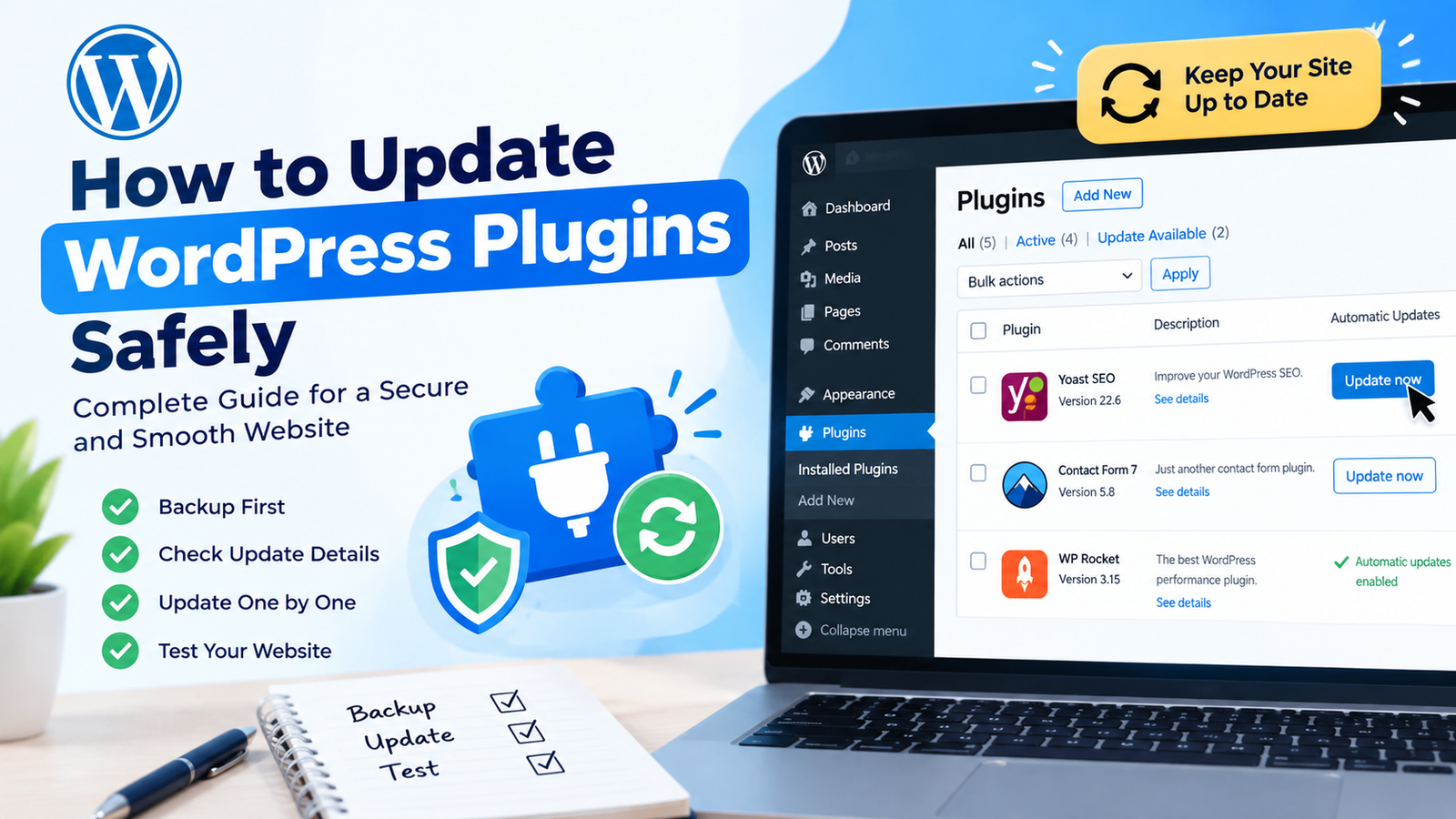
From the dashboard, go to Plugins > Installed Plugins. You will see all plugins installed on your website.
Step 2: Find Available Updates
Look for plugins showing an update notification. WordPress normally displays an Update now option when a new version is available.
Before updating, make sure you have a recent backup.
Step 3: Click Update Now
Click Update now next to the plugin you want to update.
WordPress will download the latest version and replace the existing plugin files. Wait until the update finishes before leaving the page or starting another update.
Step 4: Test Your Website
After the update is complete, visit your website.
Check your homepage, navigation menu, contact forms, login area, and other important functions. If you run an online store, also test product pages, cart functions, checkout, and payment-related features.
Testing your website immediately after an update helps you find problems quickly.
What If a Plugin Update Breaks Your Website?
Sometimes an update can create a conflict with your WordPress theme, another plugin, or your current WordPress version.
If your website develops a problem after an update, first identify the recently updated plugin. If possible, restore your backup or temporarily deactivate the plugin.
You can then check the plugin developer’s support information for a fix. In some cases, a newer plugin update may already be available.
Avoid making multiple changes at the same time because it can make the cause of the problem harder to identify.
Use a Staging Website for Major Updates
A staging website is a copy of your live website where you can test changes before making them public.
If your hosting provider offers staging, use it for major plugin updates. Install the update on the staging site first and test all important features.
If everything works correctly, you can apply the same update to your live website.
This approach is particularly useful for websites with many plugins or important business functions.
Keep Your Plugins Organized
Regular maintenance makes plugin updates easier. Remove plugins that you no longer use and avoid installing unnecessary plugins.
Keep your active plugins updated and choose plugins that are regularly maintained by their developers.
For better maintenance, safe WordPress plugin updates should be part of your regular WordPress management routine.
Final Thoughts
Learning how to update WordPress plugins safely can help you maintain a secure and reliable website. Always create a backup before important updates, review update information, and test your website afterward.
When possible, update plugins individually and use a staging website for major changes. If an update causes a problem, use your backup and troubleshooting options to restore your website.
With regular maintenance and careful testing, you can keep your WordPress plugins updated without unnecessary risks.